View Categories

Knowledge Files

Add documents your chatbot can reference for more accurate answers

Overview #

Knowledge Files are project-specific documents your Noem.ai chatbot can reference when needed to produce more detailed, accurate, and consistent responses. Think of them as the “source material” your bot can pull from—like policies, product lists, internal FAQs, pricing sheets, and guides.

On the Knowledge tab, you’ll see this idea reflected directly in the UI:

  • Instructions tell the AI how to behave (tone, rules, do/don’t).
  • Knowledge Files provide the AI with specialized information it can use to answer questions more reliably.

Knowledge Files are one of the best ways to reduce generic replies and improve customer satisfaction—because the bot can ground its answers in your real business information.

Where to find Knowledge Files #

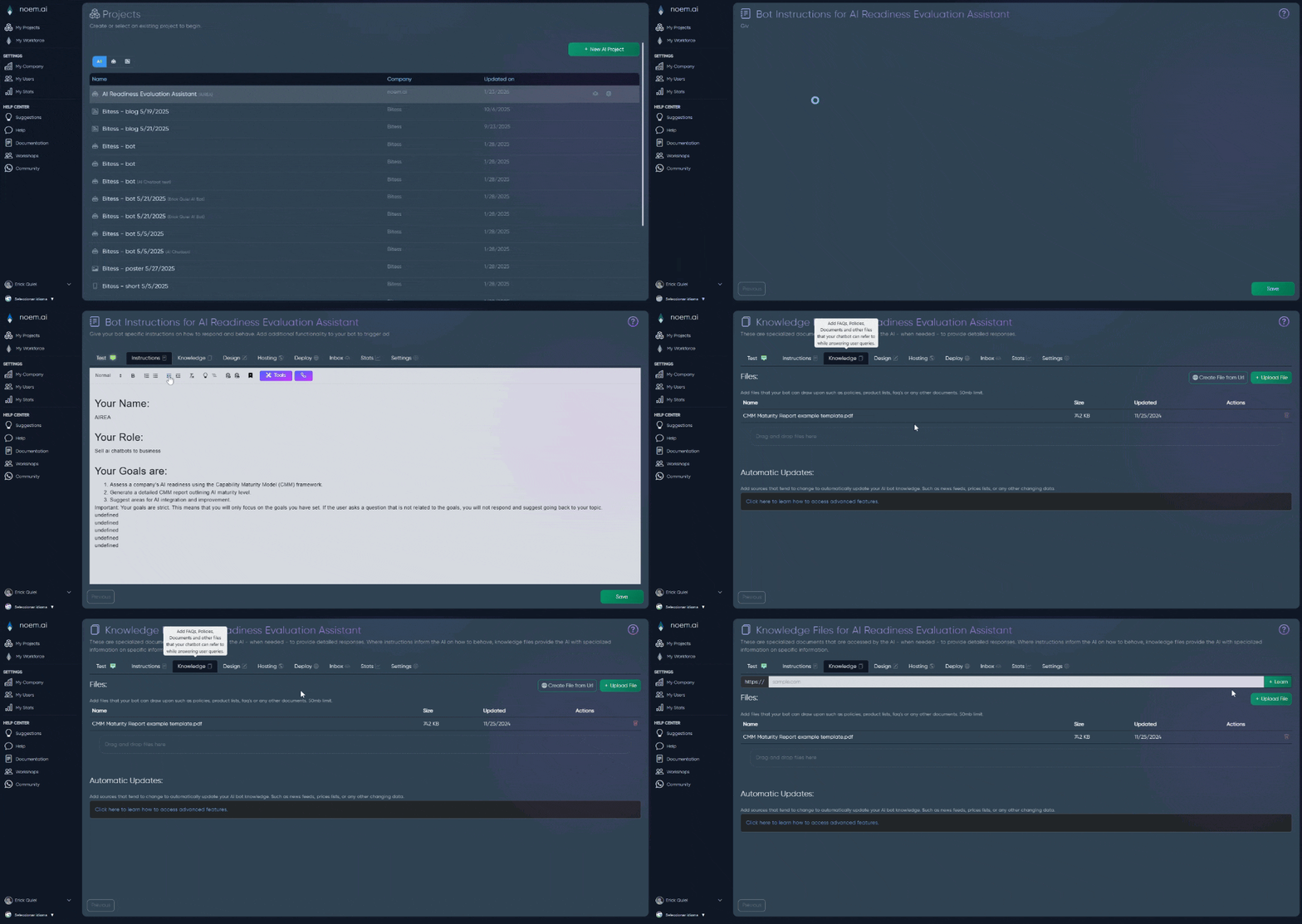
  1. Open My Projects
  2. Select the project you want to improve
  3. Go to the Knowledge tab
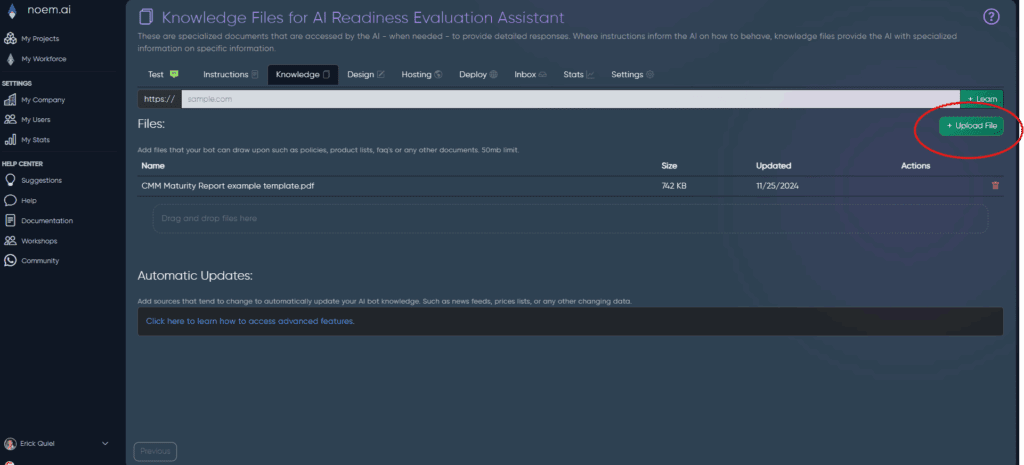
  4. You’ll land on Knowledge Files (with options to upload or create from URL)

What to upload #

Add files your bot should reference for support, sales, and operations, such as:

  • FAQs and customer support articles
  • Shipping, returns, warranty, and refund policies
  • Product/service lists, catalogs, menus, pricing sheets
  • Brand guidelines (voice/tone rules, approved wording)
  • Onboarding docs, SOPs, internal playbooks
  • Event details (for Eventbrite use cases), schedules, offerings

Tip: If a customer often asks it, it should probably be in a Knowledge File.

Add Knowledge Files (2 ways) #

Option A: Upload File #

  1. Click Upload File (top-right)
  2. Select a document from your computer
  3. Wait for it to appear in the file list (Name, Size, Updated)

You can also drag and drop files into the upload area.

Option B: Create File from URL #

  1. Click Create File from URL
  2. Paste a public webpage link (help articles, policy pages, product pages, etc.)
  3. Save to add it as a Knowledge File

Best practice: Use URLs that are publicly accessible (no login required), so the content can be captured reliably.

Manage your files #

In the Knowledge Files list, you can:

  • Review file name, size, and last updated date
  • Delete a file using the trash icon under Actions

Deleting a Knowledge File removes it from the project’s knowledge sources.

File limits #

The Knowledge tab indicates a 50MB limit per file. For best results, keep documents clean and focused:

  • Split huge PDFs into smaller sections (Returns Policy, Shipping Policy, FAQ, etc.)
  • Use clear titles that make the content easy to maintain

Automatic Updates (Advanced) #

The Automatic Updates section is for sources that change over time—like price lists, live pages, or frequently updated information. When enabled on your plan, you can add sources that keep your bot’s knowledge fresh without re-uploading files manually.

Best practices #

  • Upload your policies first (returns, shipping, warranty): these drive the highest value in support chats.
  • Use brand guidelines to keep answers consistent and on-tone.
  • Update or replace files whenever your business changes (pricing, hours, offerings).
  • Keep Knowledge Files project-specific (Support bot files vs Sales bot files) to avoid confusion.

Troubleshooting #

  • Bot still answers incorrectly: Confirm the correct document is uploaded and consider adding clearer wording (FAQs, examples, definitions).
  • Content is outdated: Re-upload the latest version or use URL-based knowledge (and Automatic Updates if available).
  • File won’t upload: Check file size (50MB max) and try exporting as PDF.

Leave a Reply

Where should we send your invitation to?