Table of Contents
Overview #
The Duplicate feature lets you create a copy of an existing project in Noem.ai. Duplicating a project carries over the project’s key configuration so you can reuse a proven setup, keep consistency across multiple projects, or test variations without rebuilding everything from scratch.
Use Duplicate when you want to:
- Reuse the same chatbot/agent structure for a new brand, site, or campaign
- Create a “v2” experiment (new language, new flow, new knowledge) safely
- Standardize setups across multiple clients or departments
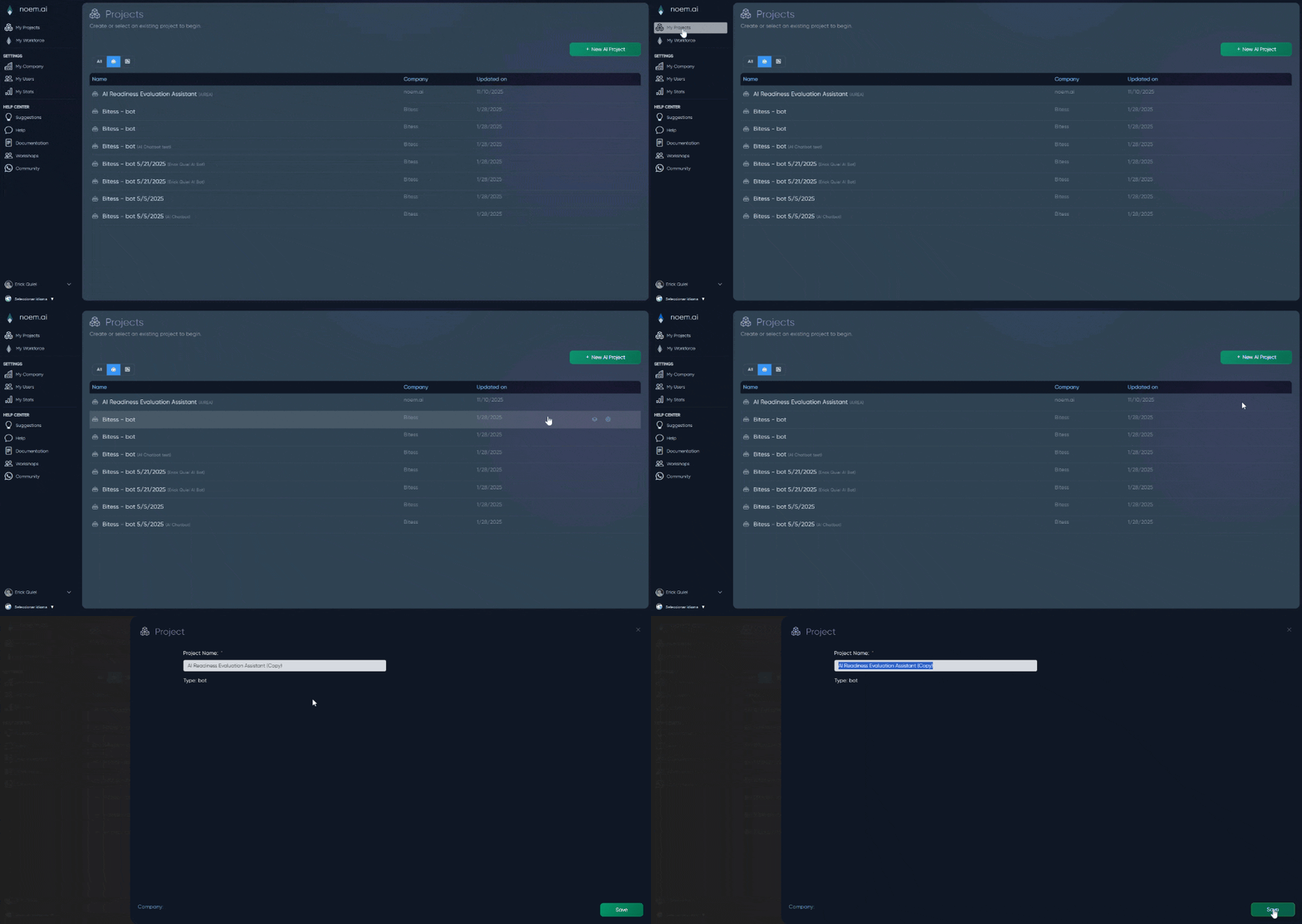
Step 1: Open the Projects page #
- Log in to Noem.ai
- In the left menu, click My Projects
- You’ll land on the Projects list page (with the + New AI Project button on the top-right).
Step 2: Select the project you want to copy #
- In the table, click the project row you want to duplicate
- Confirm the project is selected (highlighted/active selection)
Step 3: Click the Duplicate icon (top toolbar) #
- In the toolbar above the project list (near the top-left, next to the view/filter icons), click the Duplicate icon (copy symbol)
- This will create a new project based on the selected one
If you don’t select a project first, Duplicate won’t know which project to copy.
Step 4: Rename and customize the duplicated project #
After duplication, open the new project and update what needs to change, such as:
- Project name (recommended: add “Copy”, “v2”, “Spanish”, etc.)
- Company profile / brand tone
- Website domain (if it will be deployed somewhere else)
- Knowledge files (RAG docs), flows, and integrations (if applicable)
Best practices #
- Use a naming pattern like: Client – Purpose – Version (ex:
Bitess – Support Bot – v2) - Duplicate before big changes so you always have a stable backup
- If the duplicate is for a different company, update Company Profile first so responses match the new brand
Troubleshooting #
- I can’t find Duplicate: Make sure you’re on My Projects and have selected a project row first.
- Duplicate doesn’t work: Confirm you have the right permissions (Admin access) for that project.