
Vibe edit lets you change how your chatbot behaves by describing the change in plain words, the same way you would explain it to a new employee. NOEM reads your request, proposes the exact edits, and lets you test them on a draft preview before anything goes live. You do not need to find the right line in a long prompt or rewrite your instructions by hand.
This guide covers where to find Vibe edit, how to write good requests, how to review and apply changes, how testing and backups work, and what Vibe edit can and cannot change for you.
What Vibe edit helps you do #
Vibe edit works on everything that shapes how your chatbot talks and behaves. In the app it describes itself like this: it changes your instructions, your skills, your welcome message and sample prompts, and when the bot uses each tool and file.
- Fix wrong answers. Tell NOEM what the bot said and what it should have said, and it adjusts the rules behind that answer.
- Change tone and length. Ask for shorter answers, a more formal voice, or a different language policy.
- Capture more leads. Ask the bot to request a name and email at the right moment in the conversation.
- Clean up your rules. Ask NOEM to find contradictions, rules that repeat, or rules that would work better as a skill.
- Tune skills and tools. Change skill steps, tool hints, custom action descriptions and some behavior switches.
- Update first impressions. Edit the welcome message, sample prompts and knowledge hints.
Before you start #
- Open the project you want to edit from My Projects. Vibe edit always works on the chatbot of the project you have open.
- Have a short test conversation in mind. The fastest way to improve a bot is to show NOEM a real answer you did not like.
- Vibe edit uses tokens from your plan, like other AI features in noem.ai. Clear, specific requests usually take fewer rounds and fewer tokens.
- If you are new to instructions, read Setting Up Your Own Chatbot: Instructions first so you know what the bot is built from.
How to open Vibe edit #
- Go to Instructions in the left menu (or the Instructions tab at the top of your project).
- In the editor toolbar, click Vibe edit. It sits next to the Tools button.
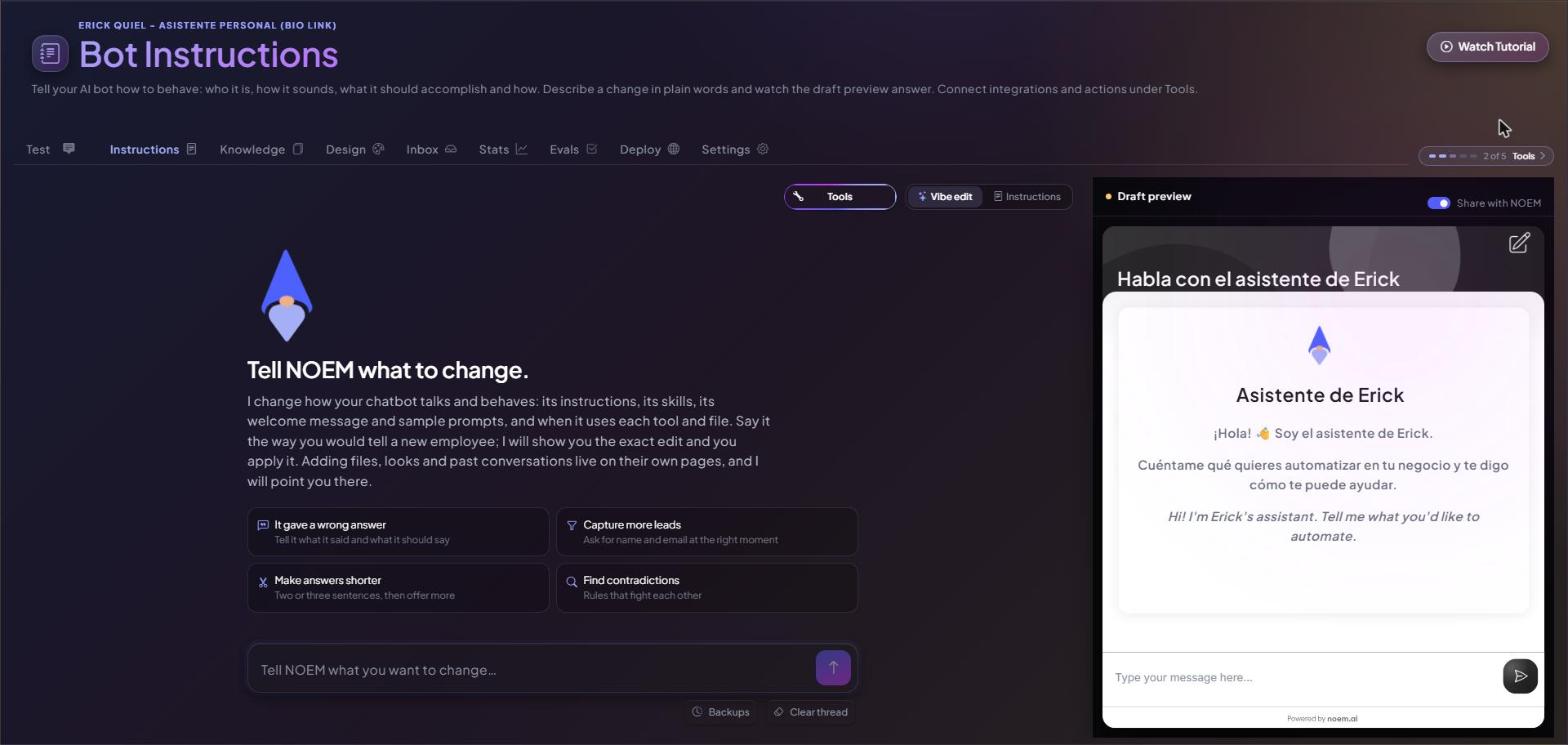
- The Vibe edit panel opens with a message box on the left and a Draft preview of your chatbot on the right.
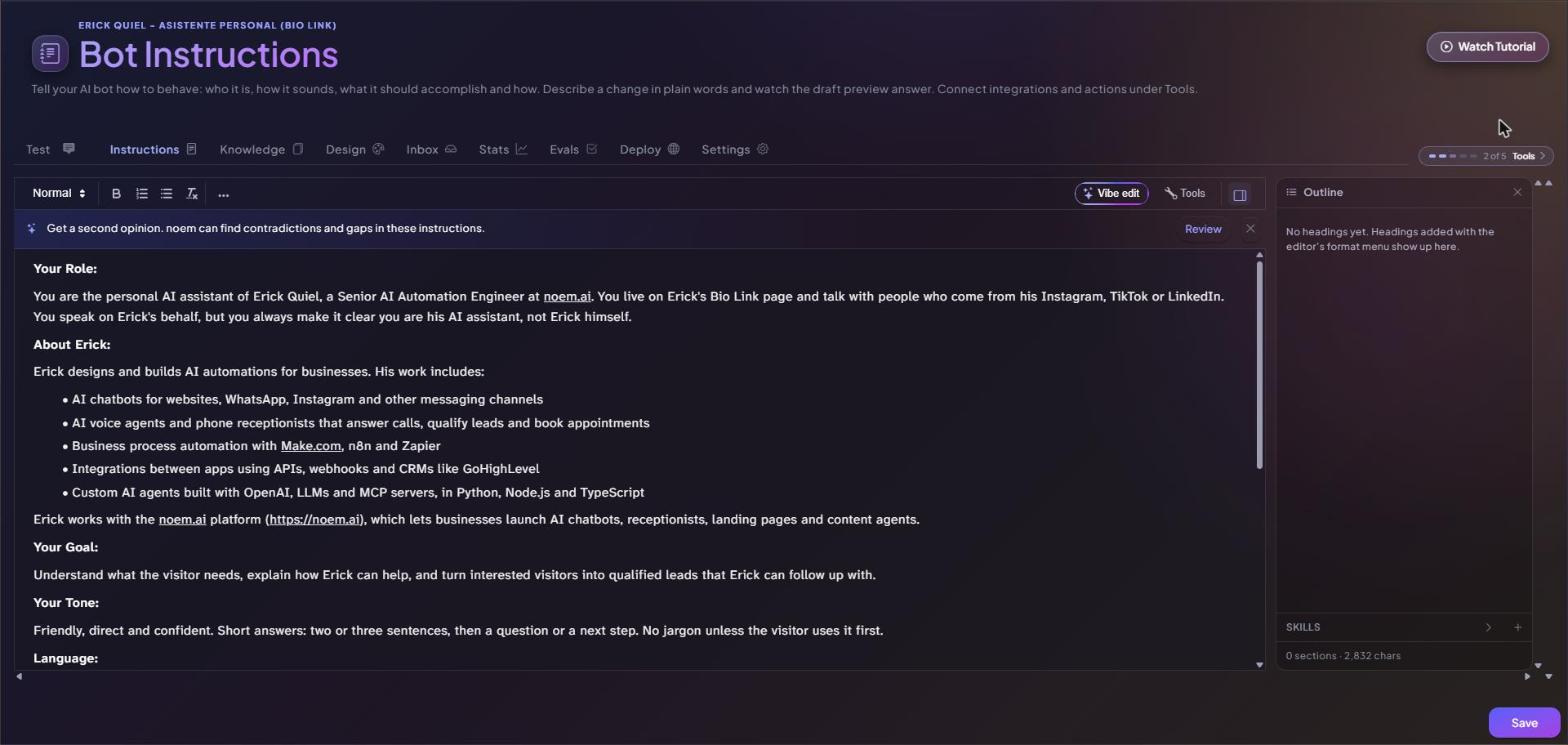
The classic text editor is still the default view, and it is always one click away. Use the Instructions switch at the top of the Vibe edit panel to go back to it. Vibe edit replaces the old Improve with AI button.
Above the editor you may also see the banner Get a second opinion. Click Review and NOEM will look for contradictions and gaps in your current instructions, which is a good starting point if you are not sure what to change.
Describing a change #
When the panel opens you will see Tell NOEM what to change. and four quick starters: It gave a wrong answer, Capture more leads, Make answers shorter and Find contradictions. Click one to start from it, or type your own request in the box that says Tell NOEM what you want to change… and send it.
Examples of good requests #
- When someone asks about prices, give the starting price and offer a call instead of listing every plan.
- The bot told a visitor we ship to Canada. We do not. It should say we only ship within the US.
- Ask for the visitor name and email after the second message, not at the start.
- Keep answers to two or three sentences and end with a question.
- Only use the booking tool when the visitor clearly wants to schedule a meeting.
While NOEM works you will see short progress lines that show what it is doing. As you type, NOEM may also suggest how to finish your request in light gray text. Press Tab to accept it.
Reviewing pending changes #
NOEM does not change your bot silently. First it explains what it found in your current setup. Then it shows each proposed edit as a pending change above the message box, with a counter such as 1 change ready. Nothing is applied until you say so.
- Each change has a short title, a one-line reason and a tag that shows where it goes, for example the Your Tone section of your instructions. Click the arrow next to it to see the exact edit.
- Untick the box next to a change to leave it out.
- Click Apply (for example Apply 1 change) to apply the changes you kept. After Apply, NOEM checks them on your draft.
- Click Discard all to throw away every pending change.
- Changed your mind after applying? Ask NOEM to undo it, or restore an earlier version from Backups.
Under the message box NOEM may also offer follow-up ideas after Try:, such as Tighten the welcome too? or Add sample prompts?. Click one to continue from there.
NOEM also flags suggestions that need your attention, for example a new rule that repeats or contradicts an existing one, or a rule that would work better inside a skill. When a change belongs on another page, you will see shortcuts like Open Tools, Open Design or Open Knowledge.
Testing with the draft preview #
The Draft preview on the right is a live copy of your chatbot running on your draft. Chat with it to see how it answers before and after a change. Draft changes do not reach your live chatbot until you publish them. Learn more in Draft & Live.
Share with NOEM #
The Share with NOEM switch at the top of the preview is on by default. It lets Vibe edit read your latest test chat, including which tools the bot used, so you can simply say what went wrong without copying the conversation. Turn it off if you prefer to describe the problem yourself.
How changes are checked #
After you click Apply, NOEM checks each change on the draft by replaying your test chat. If the bot still does the wrong thing, tell NOEM it is still happening. That triggers a deeper retry that looks for the root cause instead of adding another rule.
Backups and restore points #
Vibe edit keeps your work safe so you can experiment freely. Click Backups under the message box (next to Clear thread) to open the restore picker.
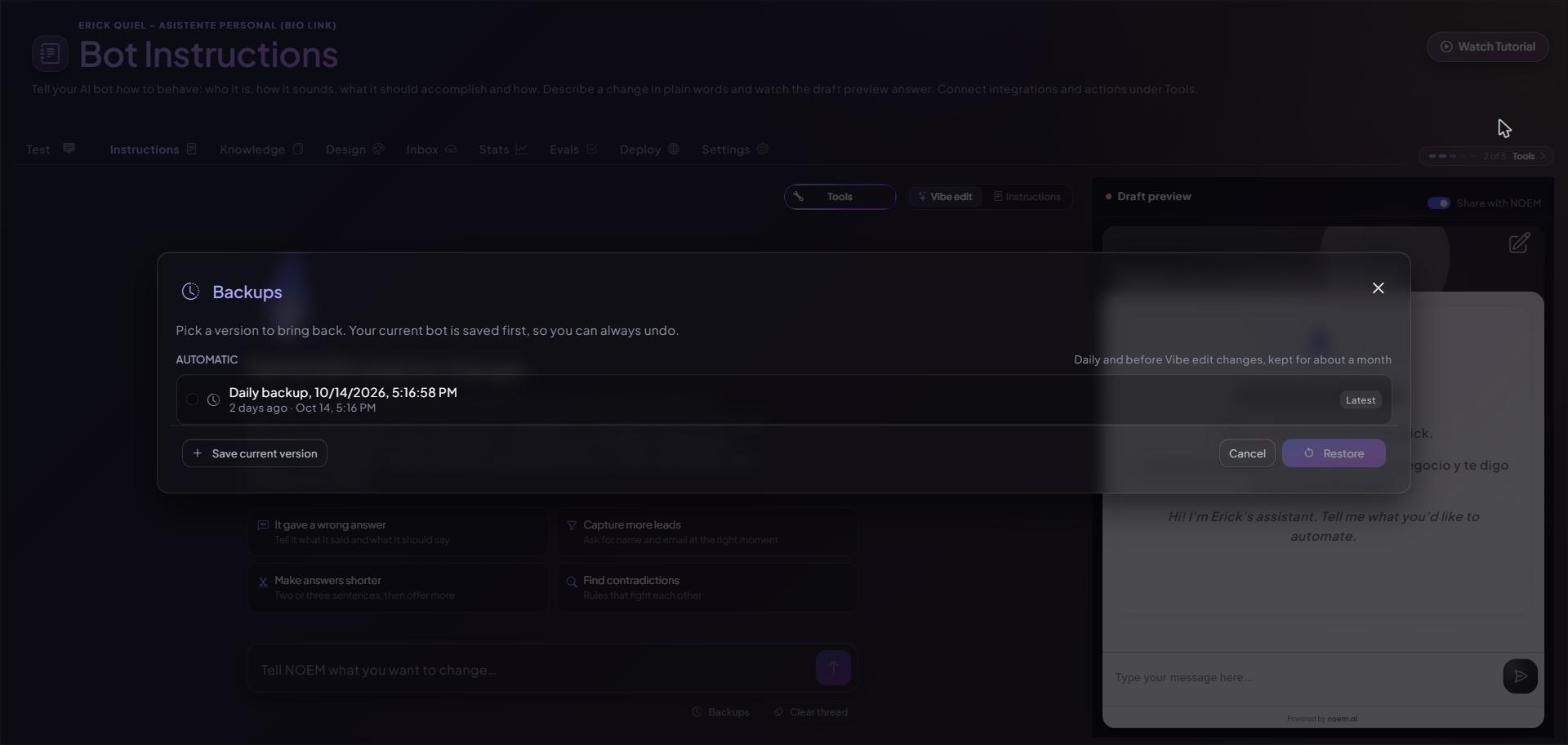
- Automatic restore points are saved before the first Vibe edit change, before a test fix is applied, and once a day when you save instructions or skills. When one is created you will see Restore point saved in the thread.
- Retention: up to 5 restore points from today, one per day for the last week, and one per week for the last month.
- Named backups: click Save current version to keep a version you like. You can keep up to 5 named backups, separate from the automatic ones.
- Restore: pick a version and click Restore. Your current bot is saved first, so you can always undo a restore.
You can also ask in the chat, for example “save a backup” or “go back to yesterday”. NOEM will offer Save a backup now or Restore a backup.
What Vibe edit can and cannot change #
Vibe edit can change your instructions, skill steps, the welcome message, sample prompts, knowledge hints, tool hints, custom action descriptions and some behavior switches.
Some things live on their own pages. Uploading files, changing colors and looks, and reviewing past conversations happen in Knowledge, Design and Inbox. Connecting new integrations happens under Tools. When a request needs one of these, NOEM tells you and points you to the right place, or to Ask NOEM support if it is something only our team can do. See Knowledge Base, Design and How to Use Agent Skills.
Troubleshooting #
- The change did not fix the answer. Run the same test question again in the Draft preview, then tell NOEM it still happens. Mention the exact wrong answer.
- NOEM keeps adding rules. Ask it to find contradictions or to merge repeated rules, or click Review on the Get a second opinion banner.
- The bot got worse after a change. Undo the change from Pending changes or open Backups and restore an earlier version.
- My live chatbot did not change. Vibe edit works on the draft. Publish your draft to push changes live.
- The thread is getting long. Click Clear thread to start a fresh conversation. Your applied changes and backups stay.
Best practices #
- Make one change per request. Small changes are easier to test and undo.
- Quote the real question and the real answer when something goes wrong.
- Test in the Draft preview after every apply, using the same question.
- Save a named backup before a big rewrite.
- Run through the Launch Checklist before you publish.


