
Universe turns your project list into a living galaxy. Every company you work with becomes a star, the AI projects that company runs orbit around it, and the job each agent handles (Support, Sales, Personal Shopper, Social, Marketing, Analyst, Ops) shows up as its own color. It is a fast, visual way to see everything your AI workforce is doing, spot the roles you have not put an agent on yet, and jump straight into any project without digging through folders or lists.
What you can do in Universe #
- See every company, project, and agent role in one interactive map
- See project status at a glance, color-coded as Live, Scheduled, Ready, or Draft
- Reveal the project types and agent roles you have not activated yet with Missed Opportunities
- Show or highlight what your teammates have built with the Team toggle
- Open any project straight from the map with a single click
- Jump to a specific project by name using the search dropdown
- Glide between companies without ever leaving the view
- Switch back to Table or Grid view any time, from the same toolbar
Opening Universe #
- Log in to your noem.ai dashboard and open My Projects from the left sidebar.
- Look at the toolbar above the project list. You will see three view icons: Table, Grid, and Universe (the wave/spark icon).
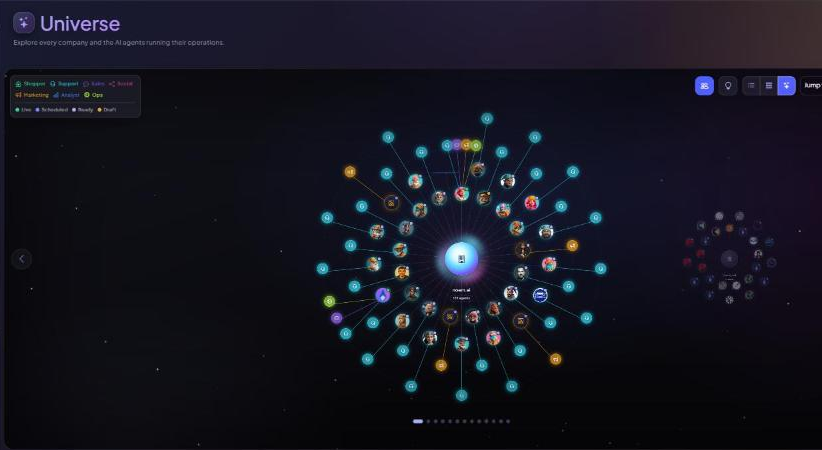
- Click the Universe icon. Your projects redraw as a galaxy, with your company at the center and each project orbiting around it.
Reading the map #
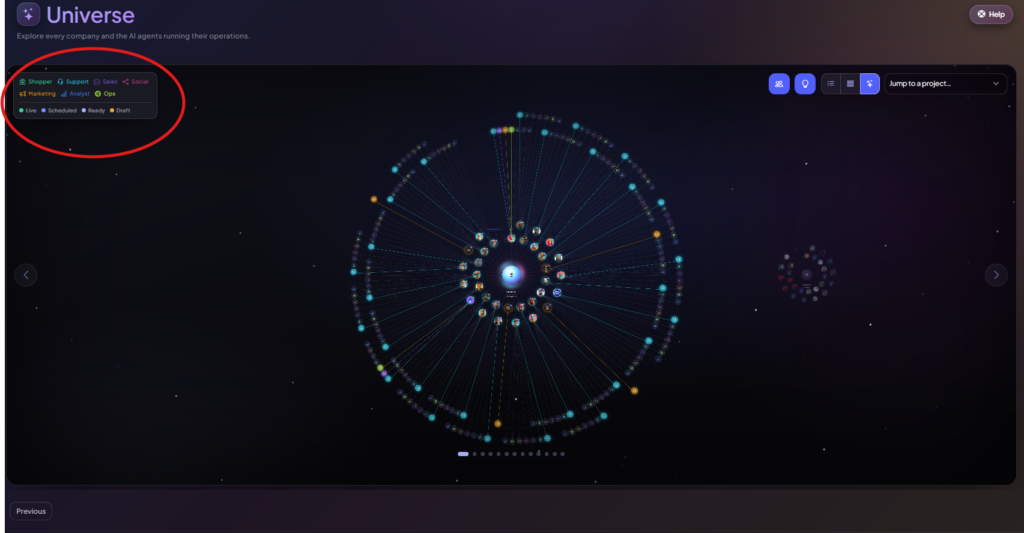
The legend in the top-left corner of the map explains everything you are looking at.
- The center star is the company you are viewing. The lines radiating out from it connect to every project that company runs.
- Each small planet orbiting the star is one project. Its color shows the primary job the agent handles: Shopper, Support, Sales, Social, Marketing, Analyst, or Ops.
- The colored dot on each planet shows its status: green for Live, blue for Scheduled, gray for Ready, or yellow for Draft.
- Dimmer, unconnected clusters further out on the map are other companies. You can glide over to explore them without losing your place.
Gliding between companies #
If you work across more than one company, or your teammates have their own projects, Universe lets you move between them without switching pages.
- Use the arrows on the left and right edges of the map to move to the next or previous company one at a time.
- Click any of the small dots below the map to jump straight to a specific company.
- Turn on the Team toggle in the top-right corner (the icon that looks like a group of people) to show or highlight the projects your teammates have built across the organization.
Revealing missed opportunities #
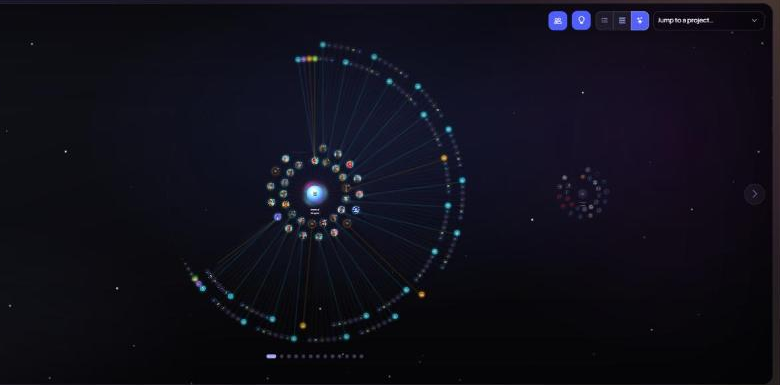
Not every job type is covered by an agent yet, and that is easy to miss when you are only looking at what is already running. Missed Opportunities redraws the map to show what is not there.
- Click the pin icon in the top-right corner of the toolbar to turn on Missed Opportunities.
- The map redraws with an outer ring of dimmer, unconnected planets around your existing projects. Each one represents a project type or agent role your company has not activated yet.
- Use this view to spot gaps, for example a Support agent with no Sales agent alongside it, or a company running Marketing but nothing in Analyst.
- Click the same icon again to turn Missed Opportunities off and return to your live projects only.
Opening a project from the map #
You do not need to leave Universe to get to work. There are two ways to open a project.
- Click directly on any planet on the map. The project opens immediately, taking you straight to its Instructions tab.
- Use the Jump to a project dropdown in the top-right corner, start typing the project name, and select it from the results. This is the fastest way to reach a specific bot when you have a lot of projects on the map.
Switching back to Table or Grid view #
Universe is one of three views on the Projects page, alongside Table and Grid. Use the same three icons in the toolbar, next to the Universe icon, to switch back whenever you want a more traditional list or card layout. Your choice of view is just a way of looking at the same projects, so nothing about your projects changes when you switch.
Tip: Use Missed Opportunities together with the Team toggle to plan what to build next as a group. It is an easy way to see which roles are covered for one company but missing for another, so you can standardize your setup across the team.
Universe does not change how your projects work behind the scenes. It is simply a different, faster way to see everything your AI workforce is doing and to spot where it can do more.


