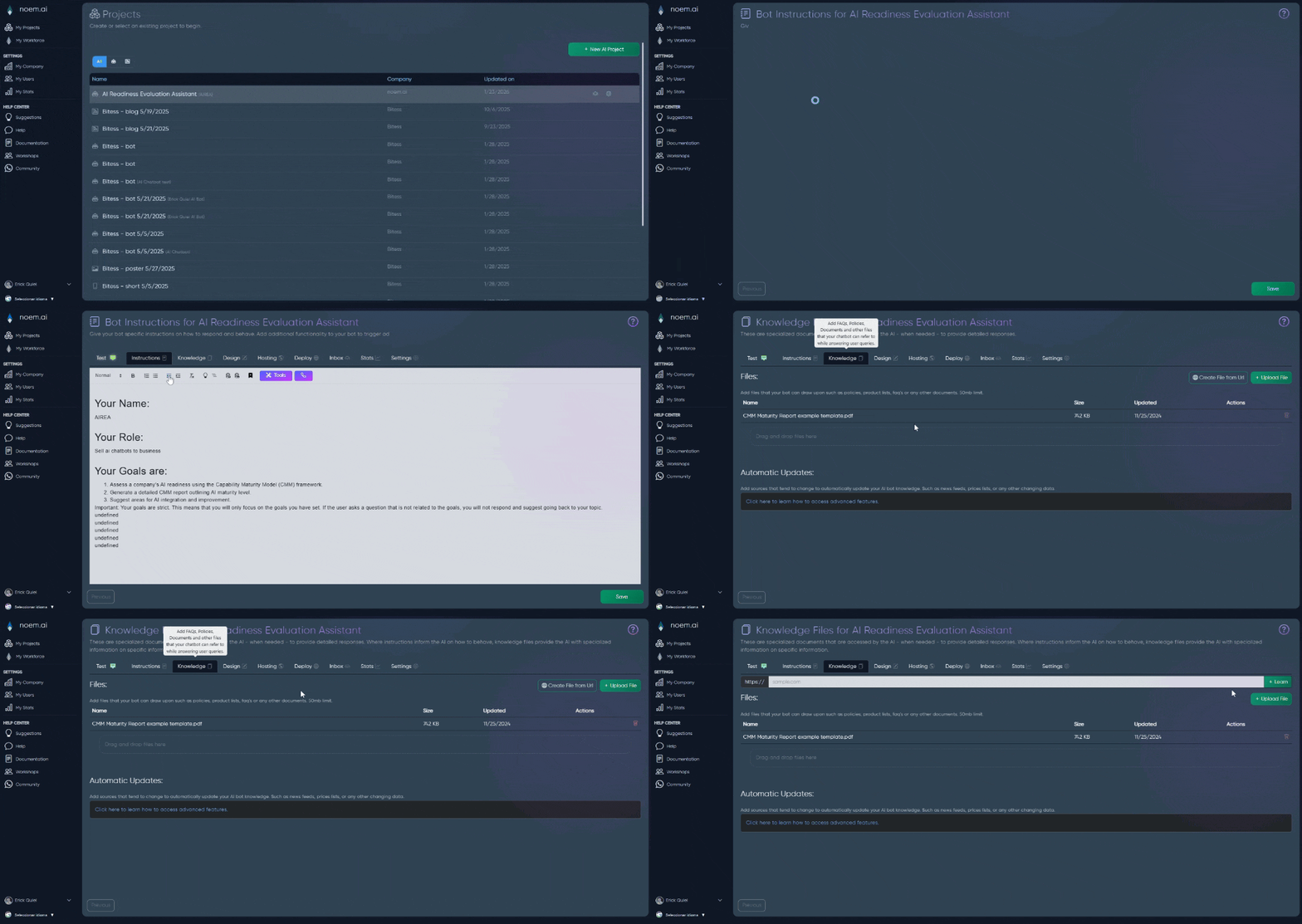
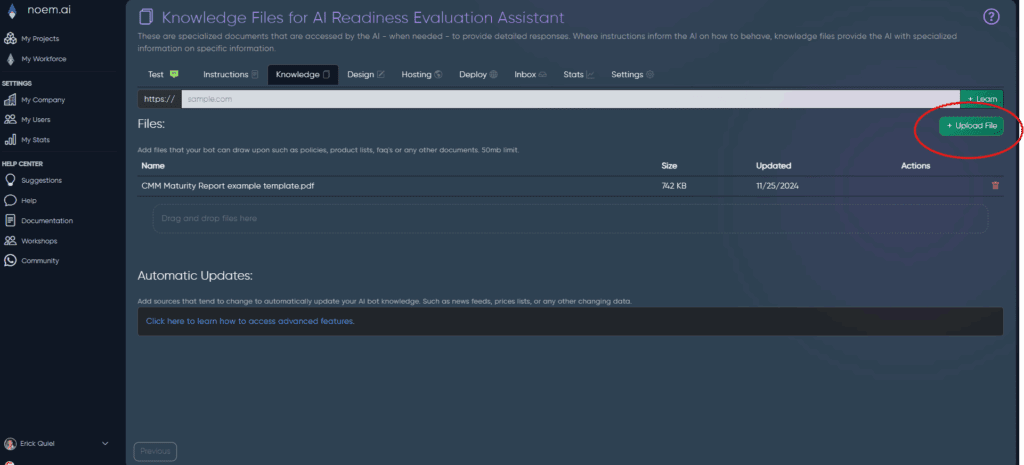
Knowledge Files are project-specific documents your Noem.ai chatbot can reference when needed to produce more detailed, accurate, and consistent responses. Think of them as the “source material” your bot can pull from, like policies, product lists, internal FAQs, pricing sheets, and guides.
On the Knowledge tab, you’ll see this idea reflected directly in the UI:
Instructions tell the AI how to behave (tone, rules, do/don’t).
Knowledge Files provide the AI with specialized information it can use to answer questions more reliably.
Knowledge Files are one of the best ways to reduce generic replies and improve customer satisfaction, because the bot can ground its answers in your real business information.
At the top of the Knowledge tab, an Overview panel gives you a quick health check:
Knowledge Assets: how many files are ready to answer questions.
Indexed Size: the total size of your knowledge that’s indexed and available now.
Live Sources: how many Automatic Update sources are refreshing on their own.
Knowledge Health: an overall status (for example, Live) showing whether your sources are keeping knowledge fresh.
Fill in When to use under a file to tell the AI which situations that file answers (for example, “when the customer asks about returns or shipping times”). Leave it blank and the AI only sees the file name.
Delete a file using the trash icon under Actions
Deleting a Knowledge File removes it from the project’s knowledge sources.
The Knowledge tab accepts DOC, DOCX, HTML, JSON, Markdown, PDF, TXT, CSV, and XML files, with a 50MB limit per file. For best results, keep documents clean and focused:
The Automatic Updates section is for sources that change over time, like price lists, live pages, or frequently updated information. It’s a Premium feature: when enabled on your plan, you can add sources that keep your bot’s knowledge fresh without re-uploading files manually.
Choose the source type: Url (paste a public link and click Test) or Internet Search (a research prompt the AI runs on a schedule)
Optionally fill in When to use, describing the situation this source answers, not the steps
Pick an Update schedule: Manually, Hourly, Daily, Weekly, or Monthly
Click Save
Tip: pages that rarely change work well on a Weekly or Monthly schedule, which also uses far fewer tokens than Hourly. To pull data from a Google Doc or Sheet, publish it to the web first (File → Share → Publish to web) and paste that link.
Each automatic source shows its type and health (for example, URL source, Healthy) and its schedule in the list. Use the icons under Actions to refresh, edit, or delete a source.
Below Automatic Updates, the Company files section (marked Company level) shows the files uploaded to your Company Profile. These files are kept once and shared with every project underneath your company, they’re referenced by link rather than copied into each bot, so replacing a file updates every bot at once.
Use Manage in Company Profile to add or update these files. A separate toggle, Also share your company details, lets you share your full Company Profile (name, website, products and services, and so on) with this specific bot, not just the files.
Upload your policies first (returns, shipping, warranty): these drive the highest value in support chats.
Use brand guidelines to keep answers consistent and on-tone.
Fill in When to use on files and automatic sources so the AI knows which questions each one answers.
Update or replace files whenever your business changes (pricing, hours, offerings).
Keep Knowledge Files project-specific (Support bot files vs Sales bot files) to avoid confusion, use Company files for anything that should apply to every bot.
Bot still answers incorrectly: Confirm the correct document is uploaded and consider adding clearer wording (FAQs, examples, definitions) or a more specific When to use note.
Content is outdated: Re-upload the latest version, or turn it into an Automatic Update source so it refreshes on a schedule.
File won’t upload: Check file type (DOC, DOCX, HTML, JSON, Markdown, PDF, TXT, CSV, XML) and size (50MB max), and try exporting as PDF.
An automatic source isn’t Healthy: Edit the source and confirm the URL is still public and loads correctly, or click Test again.