
Your AI Receptionist answers phone calls, but until now it lived apart from your chatbot: a different voice, its own instructions, and no shared memory of what your chatbot already knows about your business. This guide walks you through setting up an AI Receptionist, connecting it to a chatbot so it shares that chatbot’s knowledge and voice, and tuning the settings that belong to the phone line itself: call instructions, language, and business hours.
What’s new #
- Connect a phone line to any chatbot you already have, so callers get the same knowledge and answers as your website
- One consistent voice for the whole call, from greeting to goodbye
- Per-line call instructions, layered on top of your chatbot without changing its website behavior
- A line language you choose independently, so a French line greets and answers in French
- Editable business hours, right on the phone page
- A redesigned phone page: Voice, Inbound, and Forwarding are now three clear tabs instead of one long scroll
- Available on every plan that includes phone, no longer limited to early access
Creating an AI Receptionist project #
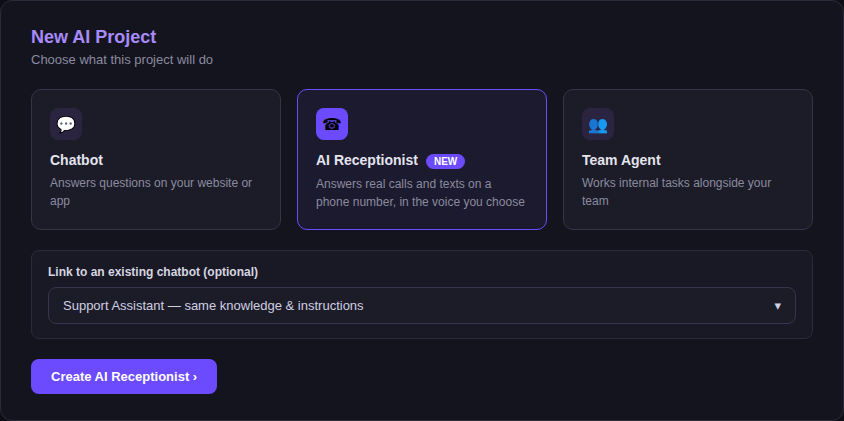
AI Receptionist is now its own project type, alongside Chatbot and Team Agent.
- From your Projects page, click New AI Project
- Choose AI Receptionist as the project type
- Optionally, link it to an existing chatbot right away so it inherits that chatbot’s knowledge, instructions, and voice. You can also skip this and link it later
- Click Create AI Receptionist
- Point a phone number at the project from the Voice tab, and it starts picking up in the voice you choose, on Voice or SMS
Connecting your receptionist to a chatbot #
If you didn’t link a chatbot when you created the project, you can connect one at any time from the Voice tab.
- Open your AI Receptionist project and go to the Voice tab
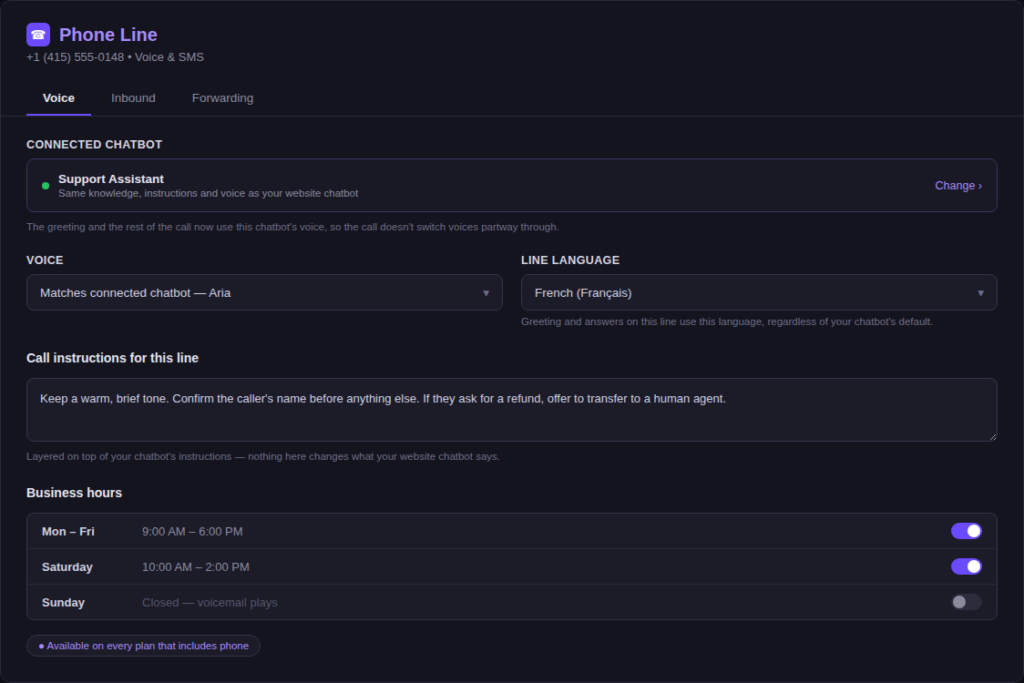
- Find the Connected chatbot card
- Click Change
- Select the chatbot you want this line to share knowledge and voice with
- Confirm your selection
Choosing the voice and setting the line language #
Voice and language are two separate settings, both on the Voice tab.
- Open the Voice tab
- Under Voice, choose a different voice from the dropdown if you want this line to sound different from your connected chatbot. It defaults to matching your chatbot’s voice
- Under Line language, choose the language this line should greet and answer in, independent of your chatbot’s default language
- Save your changes
Writing call instructions for this line #
Call instructions let you fine-tune this line without changing your chatbot’s own instructions.
- On the Voice tab, scroll to Call instructions for this line
- Type any behavior specific to this line, such as tone, what to confirm before anything else, or when to transfer to a human agent
- Save your changes. These instructions are layered on top of your chatbot’s instructions and don’t change what your website chatbot says
Setting business hours #
Business hours control when the line answers normally and when it plays a voicemail greeting instead.
- On the Voice tab, scroll to Business hours
- Toggle each day on or off
- Set the open and close time for each day you have on
- Leave a day toggled off if the line should go straight to voicemail on that day
Switching between Voice, Inbound, and Forwarding tabs #
The redesigned phone page splits settings across three tabs. Everything above lives on Voice; the other two cover the rest of how the line behaves.
- Voice: connected chatbot, voice, line language, call instructions, and business hours, all covered above
- Inbound: how incoming calls and texts are handled when they arrive
- Forwarding: where a call goes when it needs to reach a person instead of the AI
None of this requires rebuilding your chatbot or your phone setup. The Voice tab is the one place to connect a chatbot, choose a voice, set the line language, write call instructions, and adjust hours. If you need to change how a line sounds or behaves, that’s where to go.


