
Your assistant searches your Shopify catalog every time a shopper asks about a product. Until now you could see the products it came back with, but never the search it actually ran, so a result that looked wrong left you guessing whether the assistant misunderstood the shopper or your catalog genuinely had nothing to offer. This release fixes several things about how those searches run, and adds a Search Inspector so you can answer that question yourself in a few seconds.
What’s new #
- Attributes now combine correctly, so “black leather chair” matches products that are black and leather, not just one or the other
- Exclusions are honored, so when a shopper rules something out (“not that one”), it actually reaches Shopify instead of being quietly dropped
- The assistant widens the search instead of giving up when nothing matches every preference at once, and it tells the shopper what it did
- A new Search Inspector lets you run the exact same search your assistant runs and see, in plain language, why it returned what it did
- Every conversation in the Inbox now shows a summary of the searches it ran, with a one-click way to re-test any of them
Searches now match the way shoppers think #
Three changes make the underlying search logic behave the way a shopper actually expects it to.
- Attribute combination. If a shopper asks for a black leather chair, your assistant now looks for products that are black and leather, rather than anything that is black or leather. Two values of the same attribute still behave as alternatives, so “black or grey” returns both. If your tags use a namespace:value style, like color:Black or material:Leather, this happens automatically with no setup on your end.
- Honored exclusions. When a shopper rules something out, that exclusion now reaches Shopify. Previously some product searches quietly dropped it, so the excluded items came back anyway and it looked as though the assistant had ignored the request.
- Graceful widening. When no product satisfies every preference at once, the assistant first keeps all of them and loosens how they combine, and only then starts setting one aside. Either way, it now says what it did, in the chat: “Nothing matched all of those at once, so here is everything that matches any of them.” Shoppers see why the results shifted rather than wondering if they were heard.
Opening the Search Inspector #
The Search Inspector runs a search against your live store using exactly the inputs your assistant uses, and explains the result in plain language. Nothing you do here changes your store, your catalog, or your assistant.
- Open the project for the chatbot that is connected to your Shopify store.
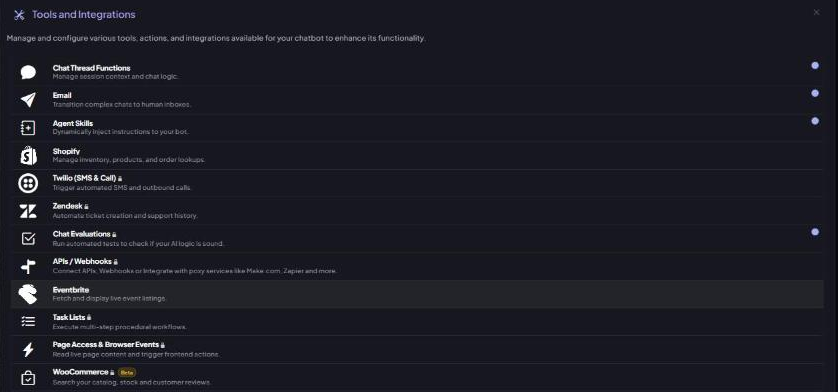
- Go to Instructions, then click Tools in the toolbar above the editor to open Tools and Integrations.
- Select Shopify from the list of tools and integrations.
- Click Test product search to open the Search Inspector.
Running a search #
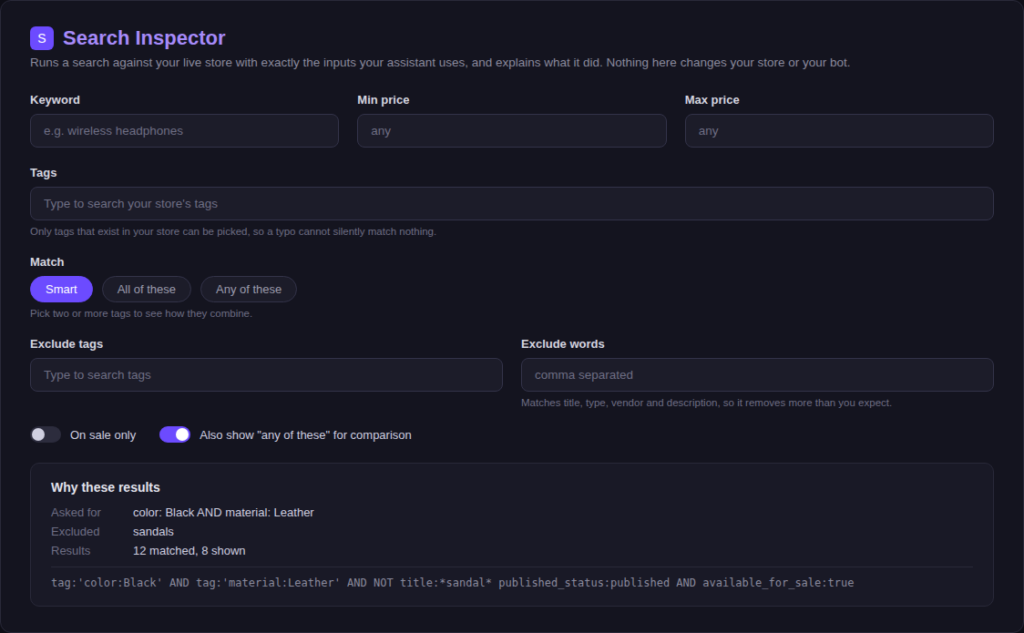
The Inspector’s fields mirror exactly what your assistant sends to Shopify, so what you build here is what shoppers actually experience.
- Keyword, Min price, and Max price: the same free-text and price range a shopper’s message gets parsed into.
- Tags: type to search, and only tags that actually exist in your store’s vocabulary can be picked, so a typo cannot silently match nothing.
- Match: choose Smart (the default your assistant uses), All of these, or Any of these once you have picked two or more tags, to see how they combine.
- Exclude tags and Exclude words: the same “not that one” logic a shopper triggers. Exclude words matches against title, type, vendor, and description, so it removes more than you might expect.
- On sale only and Also show “any of these” for comparison: two toggles for narrowing to discounted items, or running the same search two ways at once so you can see the difference between “all of these” and “any of these” side by side.
Reading “Why these results” #
Every search you run in the Inspector, and every search your assistant runs in a real conversation, comes with a plain-language explanation right below it.
- Asked for: what the assistant understood the shopper wanted, and how the attributes were combined
- Excluded: anything the shopper ruled out, so you can confirm it was actually applied
- Results: how many products your store matched against how many were actually shown, so a short list caused by your bot’s display limit is obvious instead of looking like a thin catalog
- A warning line for anything that matters: a tag that does not exist in your store, an exclusion that excluded nothing, or a filter the assistant set aside in order to find results
- The exact underlying query, so a technical teammate can see precisely what was sent to Shopify
Comparing “all of these” and “any of these” #
Tags are chosen from your store’s real vocabulary, so a tag that does not exist cannot be entered by mistake. Turn on “Also show any of these for comparison” to run the same search two ways at once, and see the difference between an assistant that requires every attribute and one that accepts any of them. Each new run is also compared with the previous one, listing exactly which products were gained and lost. Changing one thing and seeing the effect is usually enough to answer “should this have worked?”
Every conversation shows its searches #
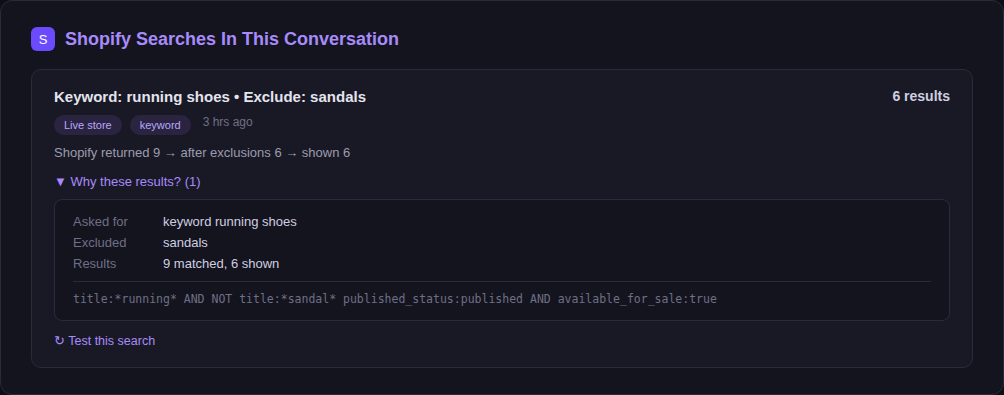
You no longer have to reproduce a shopper’s question yourself to see what your assistant searched for. In the Inbox, any conversation that ran a product search now carries a summary bar naming how many searches ran and how many came back empty.
- Open a conversation in the Inbox that involved a product search.
- Open the summary bar to see the full list of searches that conversation ran.
- Expand Why these results? on any search to read the same plain-language explanation the Inspector shows.
- Click Test this search to jump straight into the Search Inspector, pre-filled with the exact criteria from that conversation.
From a customer question to an answer #
The Test this search button is the shortest path from a shopper complaint to an answer. Open the conversation, open the search that looked wrong, change one thing in the Inspector, such as removing a tag or switching Match from All of these to Smart, and see immediately what your catalog does differently. Nothing in the Inspector changes your store, your catalog, or your assistant, so you can experiment freely.
These changes do not require anything from you. Your assistant already searches this way, and the Search Inspector is simply the window into it. The next time a shopper says a search came back empty or wrong, you no longer have to guess. Open the conversation, look at what was actually asked for and excluded, and see for yourself whether the catalog had an answer to give.


