
Your Shopify assistant has two settings panels that control how it presents products and what it does when a shopper’s search comes up short. Both live under Shopify Settings for your project.
How product results are shown (Display) #
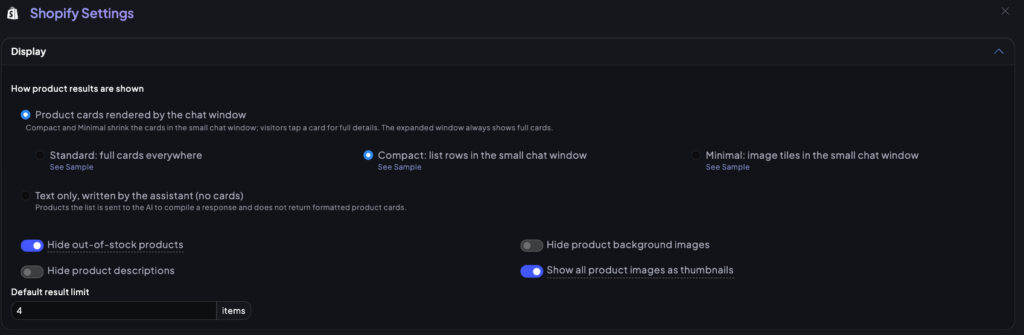
Open Shopify Settings and expand Display. This controls whether your assistant answers with visual product cards or with a plain text response written by the assistant itself.
Product cards rendered by the chat window
This is the default. Choose one of three densities:
- Standard: full cards everywhere.
- Compact: list rows in the small chat window. The expanded window always shows full cards.
- Minimal: image tiles in the small chat window. Visitors tap a card for full details.
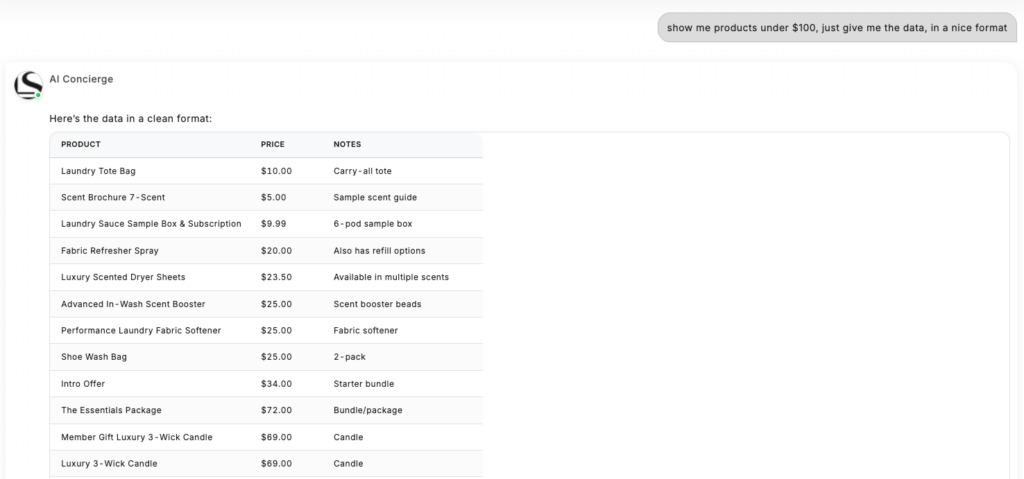
Text only, written by the assistant (no cards)
Instead of formatted cards, the product list is handed to the assistant, which writes its own response, for example a clean text table when a shopper asks to just see the data. Use this if you want full control over how results read, set through your Instructions, rather than the fixed card layout.
Other Display settings in the same panel:
- Hide out of stock products.
- Hide product descriptions.
- Hide product background images.
- Show all product images as thumbnails, for richer product cards.
- Default result limit, the number of items shown per search.
What happens when a search finds nothing (Search behavior) #
Expand Search behavior in the same Shopify Settings panel. This controls what your assistant does when a shopper’s exact request has no match in your catalog.
- Always show something: loosen the search until products come back. The shopper never hits a dead end, but if nothing is close they can be shown products unrelated to what they asked for.
- Loosen the filters, but never drop what the shopper asked for. Price, tags, and product type are relaxed, but the search term or named collection is kept. This can still return zero results when your catalog has nothing close, for example a shopper asking for a shirt in a supplement store.
- Do not loosen: tell the shopper there is no match. The assistant is never handed unrelated products, though it may still try a simpler search of its own.
You can customize the message shown when results are loosened, turn off that message entirely, and customize the message shown when a search genuinely comes back empty.
These settings apply to your live assistant right away. No publishing needed.


