
Backups let you save a version of your chatbot and bring it back later. NOEM also saves restore points for you automatically, so you can try changes with Vibe edit or by hand without worrying about breaking something that works.
Two kinds of backups #
- Named backups: versions you save yourself, for example before a big rewrite. You can keep up to 5.
- Automatic restore points: versions NOEM saves on its own. They are kept separately, so they never push out one of your named backups.
When NOEM saves a restore point #
- Before the first change you apply with Vibe edit.
- Before a fix from a test is applied.
- Once a day when you save your instructions or skills.
When Vibe edit saves one, you will see Restore point saved in the thread.
How long restore points are kept #
Automatic restore points are kept on a schedule, for about a month in total:
- Up to 5 from today.
- One per day for the last week.
- One per week for the last month.
Named backups are not removed by this schedule.
Open your backups #
There are three ways to get to your backups:
- In Vibe edit, click Backups under the message box, next to Clear thread.
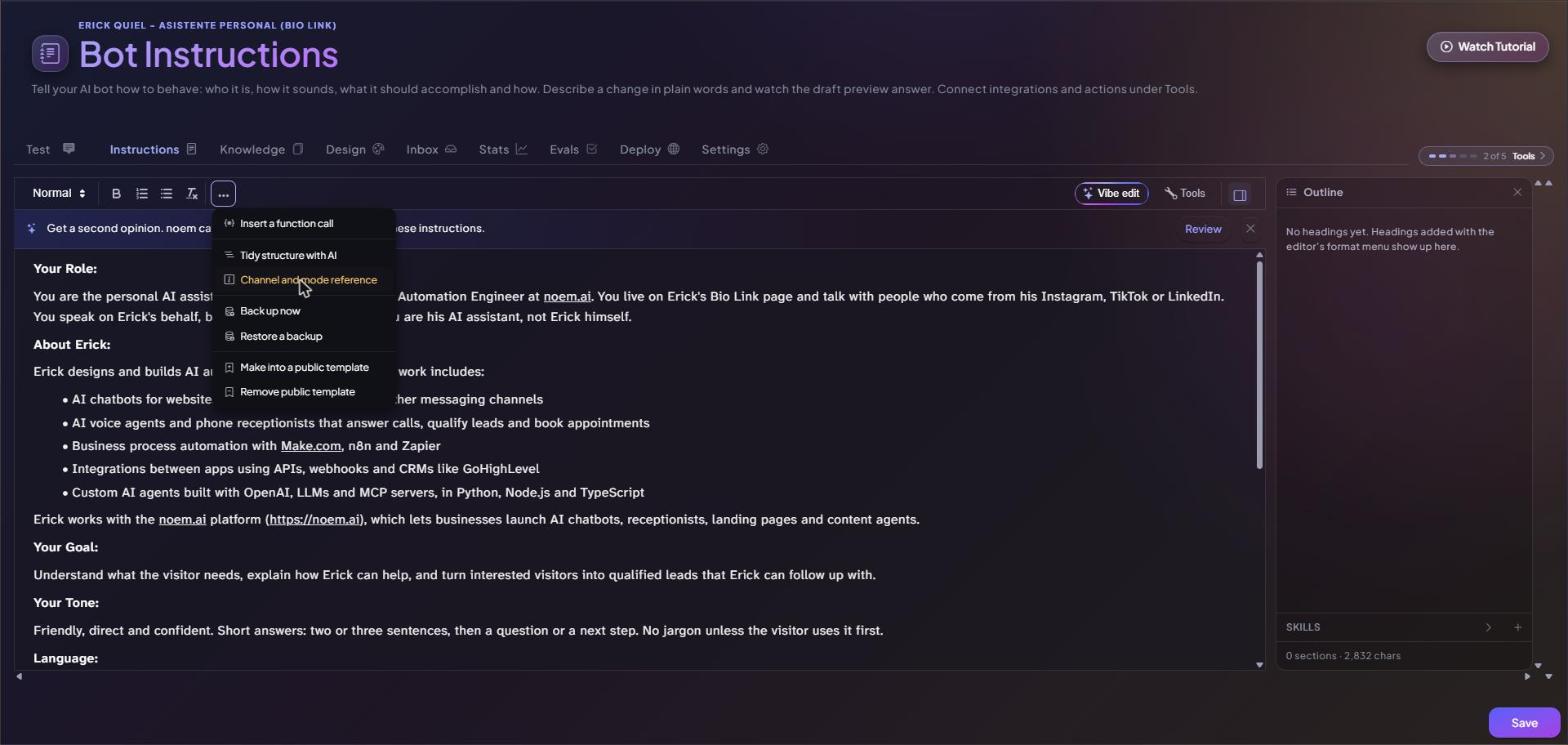
- In the classic Instructions editor, open the More menu (the three dots) and choose Back up now or Restore a backup.
- Ask Vibe edit in plain words, for example “save a backup” or “go back to yesterday”. NOEM answers with Save a backup now and Restore a backup buttons.
Restore a version #
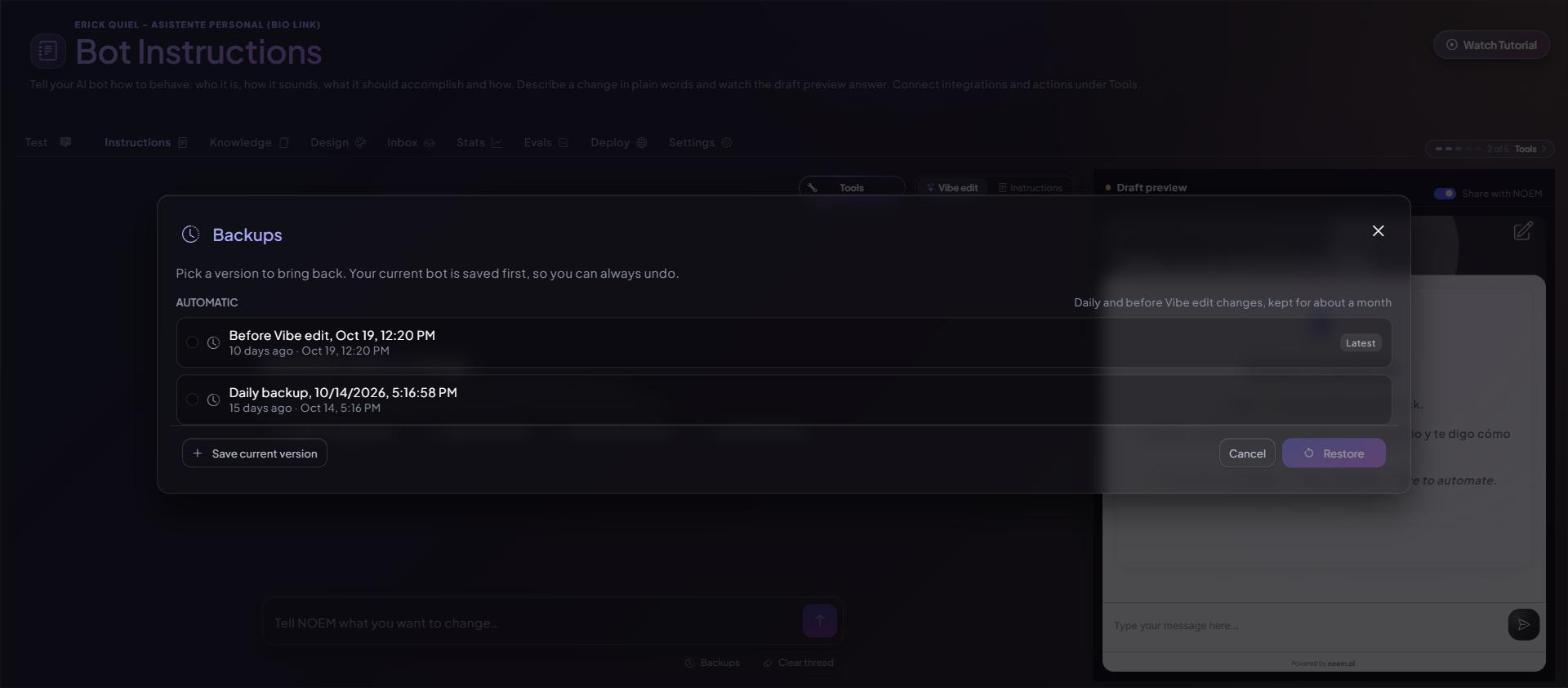
- Open Backups.
- Pick the version you want to bring back. Each row shows its name and when it was saved, and the newest one is marked Latest.
- Click Restore.
Your current chatbot is saved first, so you can always undo a restore by restoring that copy. Click Cancel to close the picker without changing anything.
Save a named backup #
Click Save current version in the Backups picker, or Back up now in the More menu. Save one before a big change, before you hand the chatbot to someone else, or whenever it is working exactly the way you like.
Tips #
- Save a named backup before a large rewrite or before trying many Vibe edit changes in a row.
- After restoring, test your chatbot in the Draft preview or the Test tab.
- Restoring changes your chatbot’s setup. Remember to publish when you are happy with it. See Draft Mode and Live Mode.


