
When a visitor asks where you are or how to get to you, your chatbot can answer with a map card instead of typing out an address. The card shows a pin on a map, your address and a Get directions button. This guide shows how to turn maps on, what visitors see, and how maps work on channels that cannot show cards.
The two map options #
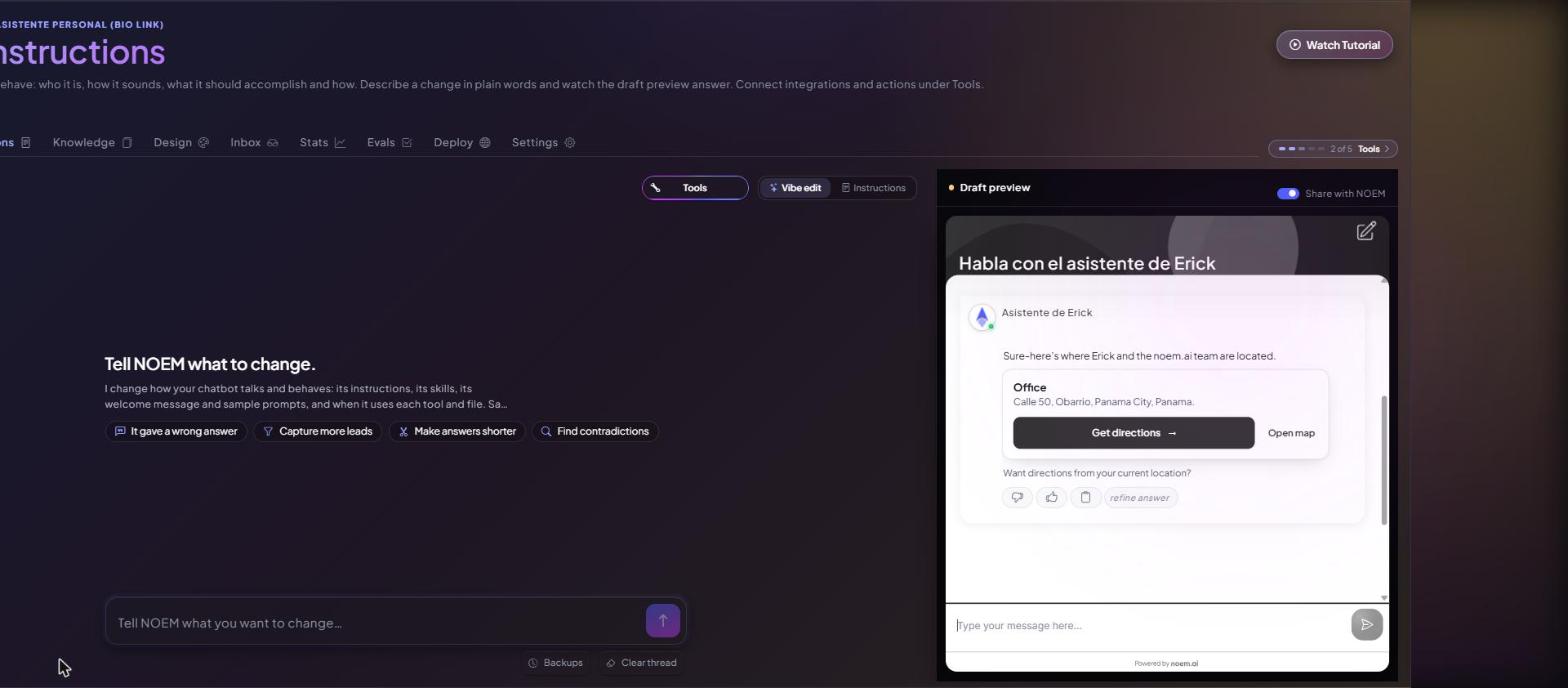
- Show a Map of a Place: for questions like “Where are you?” or “What is your address?”. The card shows one pin on a map, the place name and address, with Get directions (from wherever the visitor is) and Open map.
- Show a Map From the Visitor to You: for questions like “How far is my home at 12 Oak St from you?”. The card shows pins A and B on one map. Get directions shows the route and travel time. The chatbot never guesses a distance.
Both options are off by default.
Turn maps on #
- Open your project and go to Instructions.
- Click Tools, then Set up next to Conversation settings (under Advanced).
- In the Maps and Directions section, switch on Show a Map of a Place, Show a Map From the Visitor to You, or both.
- Check the When to use box for each option. It tells your chatbot when the card fits, for example “When the visitor asks where we are, for our address, or how to get to one of our locations.” Edit it if your business needs something different.
- Click Save.
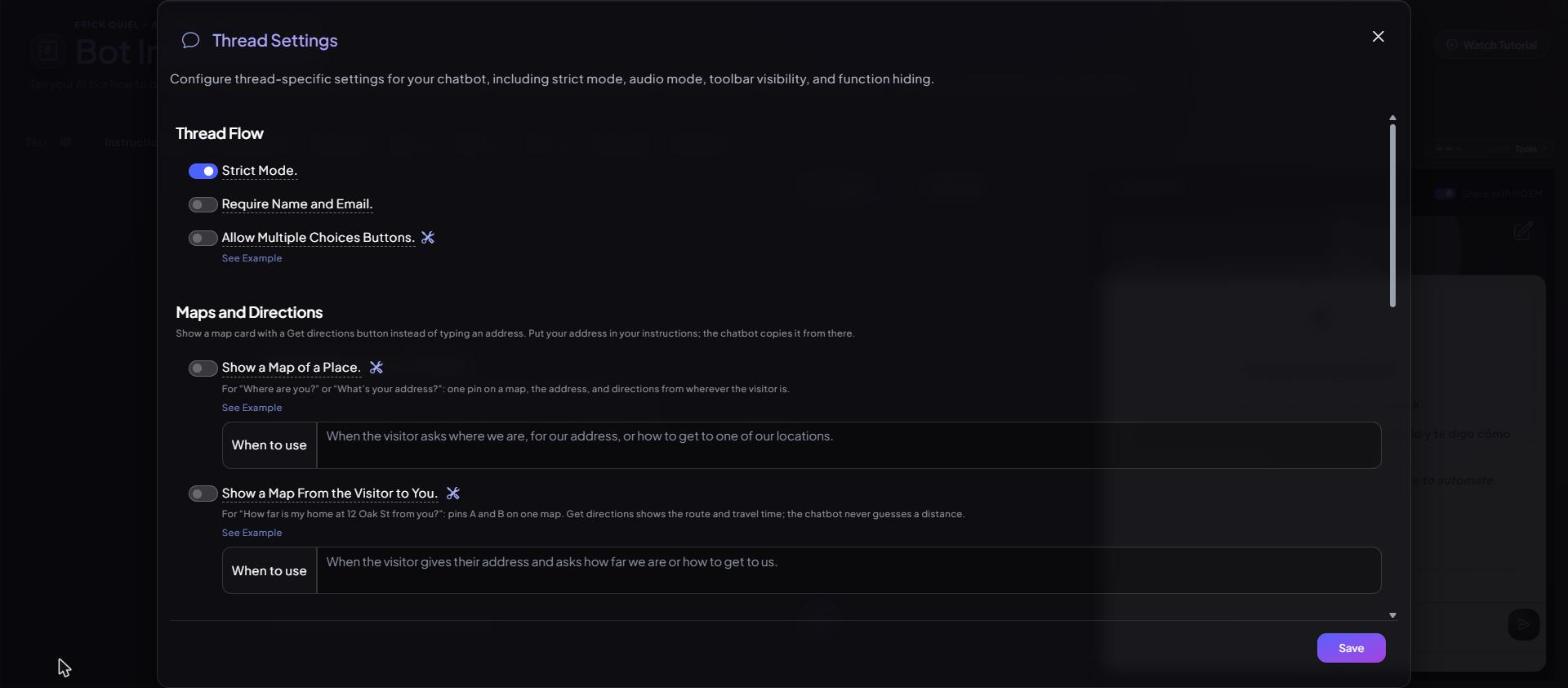
Click See Example under each option to preview what the card looks like.
Add your address to your instructions #
The chatbot copies the address from your instructions; it never guesses one. Add each location clearly, with the full street address, city and postal code. For the visitor-to-you map, the starting point comes from the visitor’s own words. If you have several locations, list each one with a short name so the chatbot can pick the right one. See Setting Up Your Own Chatbot: Instructions.
Here is what a visitor sees in the website chat when they ask “Where is your office? Can you show me on a map?”:
What visitors see on each channel #
- Website chat: the interactive map card with Get directions and Open map.
- SMS, WhatsApp, Messenger, Instagram and other text channels: no card. The chatbot sends the address and a Google Maps link instead.
How the chatbot decides to show a map #
The chatbot picks a card based on what the visitor asks and the description of each tool, not on exact keywords. Questions like “where are you”, “show me on a map”, “directions to your store” or “how do I get there” usually bring up the place map. Questions with a starting address, like “directions from 500 Pine St” or “how far from my hotel”, bring up the visitor-to-you map. The map only appears when its option is on in Conversation settings, and the visitor-to-you map needs a starting address.
If another tool fits the question better (products, store, calendar, lead capture or multiple-choice buttons), that tool wins.
Troubleshooting #
- The chatbot types the address instead of showing a map: check that the option is on and saved, and that the visitor is in the website chat. Text channels always get the address and a link.
- The map shows the wrong place: check the address in your instructions. The chatbot uses exactly what you wrote.
- No distance or route appears: the visitor-to-you map needs the visitor’s starting address. Ask for it, or let the chatbot ask.
- The map appears too often: make the When to use text more specific.


