
Overview #
The Facebook Messenger and Instagram integration lets your Noem.ai chatbot reply to messages from your connected Facebook Pages and Instagram Professional accounts.
This is useful when your business already receives leads, support questions, booking requests, or product inquiries through social media. Instead of manually answering every message, your chatbot can respond instantly, qualify the conversation, and guide the user to the right next step.
This feature is currently in beta. Because it depends on Meta permissions, Facebook Page access, Instagram account settings, and Business Manager configuration, setup may vary depending on how your Meta assets are managed.
What This Integration Does #
Once connected, your chatbot can respond to messages from:
- Facebook Messenger conversations connected to your selected Facebook Page
- Instagram DMs from a connected Instagram Professional account
- Pages and accounts you explicitly authorize during Meta setup
Your chatbot can then help with common social messaging use cases, such as answering FAQs, qualifying leads, routing support questions, sending booking or contact links, and collecting basic non-sensitive information before a human follow-up.
For example, a visitor can message your business on Instagram asking, “Do you offer consultations?” and your Noem.ai chatbot can respond immediately with the right answer and next step.
Before You Start #
Before connecting Meta, make sure you have the right access in both Noem.ai and Meta.
You need:
- a Noem.ai chatbot project
- access to the chatbot Deploy tab
- a Facebook account with permission to manage the business Page
- the Facebook Page you want the chatbot to answer
- an Instagram Professional account if you want Instagram DM support
- the Instagram account connected to the correct Facebook Page
- permission to manage messages for the Page or Instagram account
For Instagram, the account must be a Professional account. Personal Instagram accounts may not appear or may not be eligible for this type of messaging connection.
Connect Facebook Messenger and Instagram #
Step 1: Open the Deploy Tab #
In Noem.ai, open the chatbot you want to connect.
Go to:
My Projects → Select chatbot → Deploy
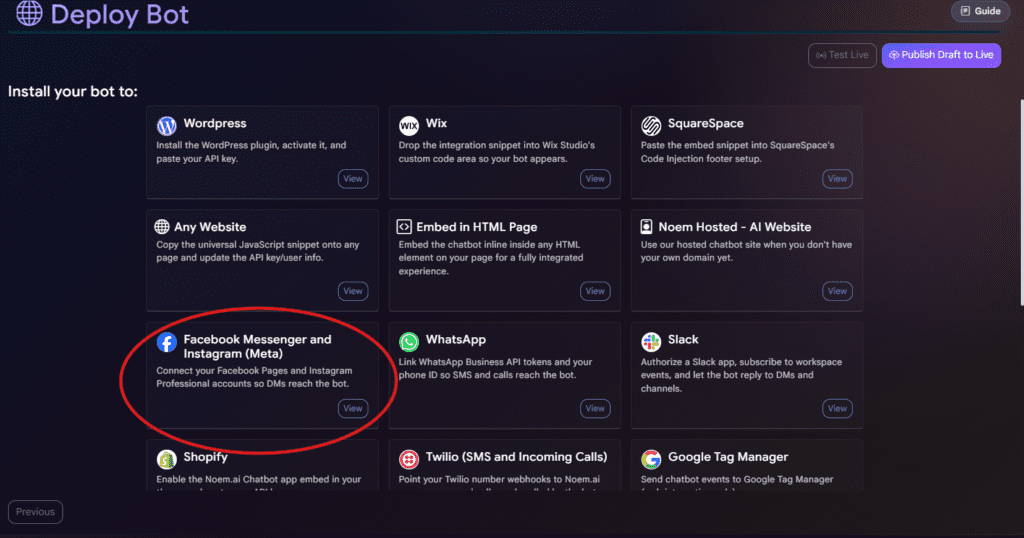
On the Deploy page, find the card called:
Facebook Messenger and Instagram (Meta)
Click View.
This opens the Meta connection panel for that chatbot.
Step 2: Start the Meta Connection #
Inside the Meta integration panel, click Connect.
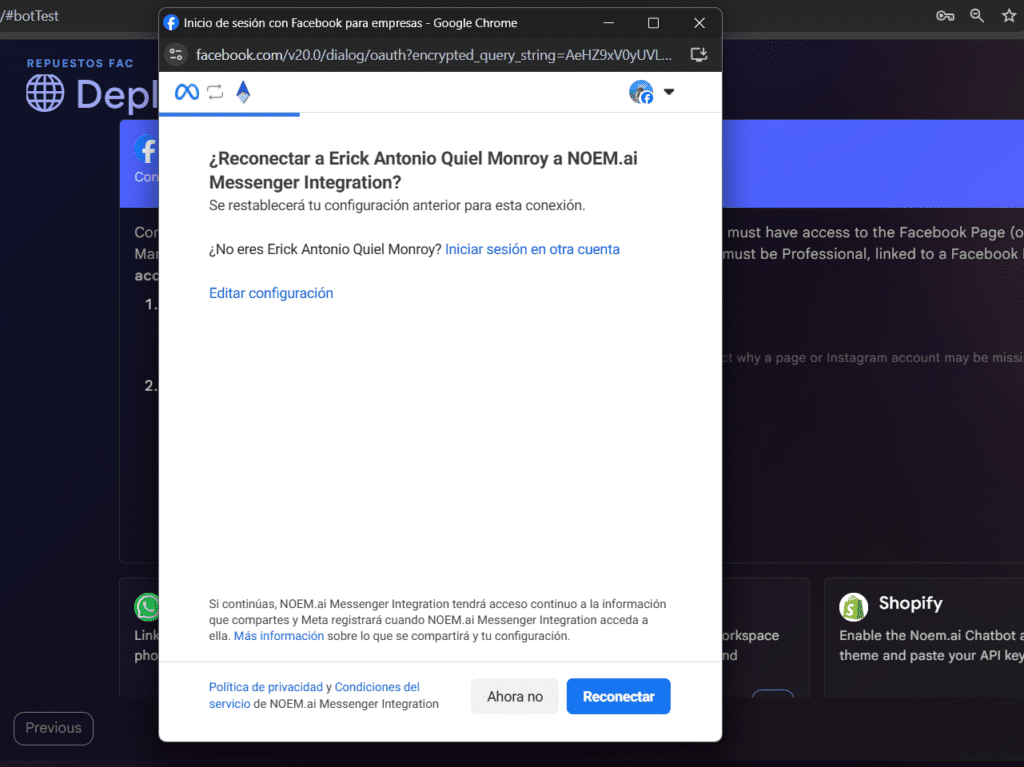
This starts the Meta authorization flow. A Facebook login window will open and ask you to continue with a Facebook account.
Make sure you use the Facebook account that has access to the Page or Business Manager assets you want to connect.
If the wrong account appears, choose the option to log in with another account before continuing.
This step matters because Noem.ai can only show and connect assets that the logged-in Meta user has permission to access.
Step 3: Choose the Facebook Pages to Connect #
Meta will ask which Pages you want NOEM.ai Messenger Integration to access.
You may see options like:
- allow access to all current and future Pages
- allow access to current Pages only
- select specific Pages
For most users, the safest option is to select only the Pages this chatbot should manage.
Recommended setup:
- Choose the option to select current Pages.
- Select the specific Facebook Page you want this chatbot to answer.
- Continue to the next step.
Only select Pages that should be connected to this chatbot. If you manage multiple brands or clients, it is usually better to connect each brand to its own chatbot.
Step 4: Review and Approve Meta Permissions #
Meta will show a permission review screen before finishing the connection.
The access request may include permissions to:
- manage and access Page conversations in Messenger
- manage and access messages for the Instagram account
- read content posted on the Page
- manage accounts, settings, webhooks, and content access for the Page
- show a list of Pages you manage
These permissions allow Noem.ai to receive messages, route them to your chatbot, and send replies through the connected Page or Instagram account.
Approve the required permissions and click Save or Continue to finish the Meta authorization flow.
If you skip or deny permissions, the connection may appear incomplete or the chatbot may not be able to respond.
Step 5: Select Which Accounts the Chatbot Should Answer #
After the Meta authorization is complete, return to Noem.ai.
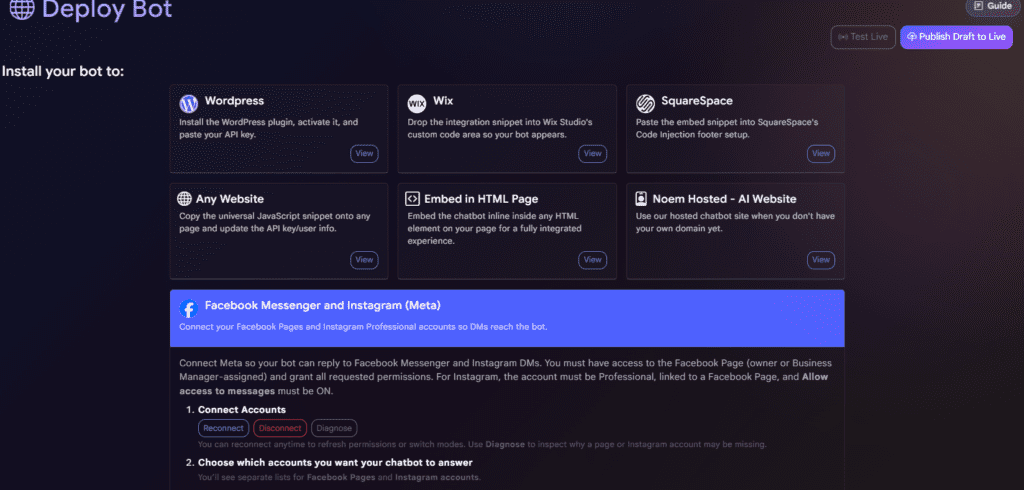
Inside the Meta integration panel, you should see the accounts available for connection. Depending on your Meta setup, you may see separate areas for Facebook Pages and Instagram accounts.
Select the Facebook Page or Instagram account that this chatbot should answer.
This is important: authorizing Meta access does not always mean the chatbot is active for every account. You still need to choose which accounts the chatbot should respond from inside Noem.ai.
Step 6: Test Messenger and Instagram #
After selecting the Page or Instagram account, test the setup before relying on it for real customer conversations.
For Facebook Messenger, send a message to the connected Page from a normal Facebook user account. Do not test only from the Page admin view.
Try messages like:
- Hi
- What services do you offer?
- I need help
- How can I contact you?
For Instagram, send a DM to the connected Instagram Professional account.
Confirm that:
- the message reaches the chatbot
- the chatbot replies in the correct channel
- the answer matches your bot instructions and knowledge
- the response is short enough for social messaging
- support questions are handled as support, not sales
- sales questions are routed to the correct next step
Instagram and Messenger users usually expect quick replies, so avoid long website-style responses.
Using Meta Diagnostics #
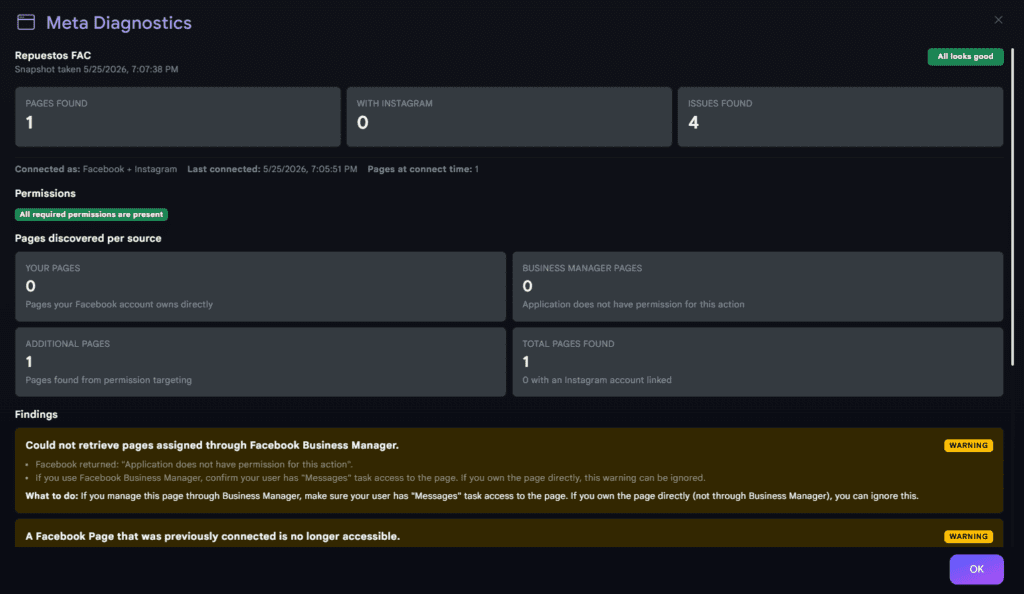
Noem.ai includes a Meta Diagnostics panel to help you understand whether your connection is healthy.
Use this tool when:
- your Facebook Page does not appear
- your Instagram account does not appear
- the chatbot does not reply to Messenger
- the chatbot does not reply to Instagram DMs
- you changed Meta permissions recently
- your Page is managed through Meta Business Manager
Meta Diagnostics is especially useful during beta because it separates permission issues from chatbot configuration issues.
What Meta Diagnostics Shows #
Pages Found #
This shows how many Facebook Pages Noem.ai detected from your Meta connection.
If this number is 0, check whether you connected the correct Facebook account and selected the Page during Meta authorization.
If the expected Page appears, the Messenger side of the setup is usually on the right path.
With Instagram #
This shows how many detected Pages have a linked Instagram account.
If this number is 0, Instagram DM support may not be available for the selected setup yet.
Check that the Instagram account is Professional, linked to the correct Facebook Page, and has message access enabled.
Issues Found #
This shows the number of warnings or configuration issues found during diagnostics.
An issue does not always mean the integration is broken. Some warnings only apply to Pages managed through Business Manager.
For example, if Noem.ai detects the Page through permission targeting but cannot retrieve Business Manager-assigned Pages, the Page may still work if it appears under the total Pages found.
Permissions #
If the diagnostics panel says:
All required permissions are present
that means the required Meta permissions were granted during authorization.
If permissions are missing, reconnect the Meta integration and approve all requested access again.
Pages Discovered Per Source #
The diagnostics panel may show where Noem.ai found your Pages.
Your Pages #
These are Pages your Facebook account owns or manages directly.
If your Page appears here, the setup is usually straightforward because the access is tied directly to your Facebook account.
Business Manager Pages #
These are Pages assigned through Meta Business Manager.
If this section shows 0 and displays a message like:
Application does not have permission for this action
it usually means Meta did not allow Noem.ai to retrieve Business Manager-assigned Pages directly.
If you manage the Page through Business Manager, confirm that your Meta user has Messages task access to the Page.
Additional Pages #
These are Pages found through the permissions you granted during the Meta authorization flow.
If your Page appears here, it means Noem.ai detected it because it was selected or authorized during setup.
Total Pages Found #
This is the total number of Pages Noem.ai detected across all available sources.
If the expected Page appears in the total, your Page connection may still be valid even if a Business Manager warning appears.
Understanding the Business Manager Warning #
You may see a warning like:
Could not retrieve pages assigned through Facebook Business Manager.
This usually means Meta returned a permission limitation for Business Manager Page discovery.
What to do:
If the Page is managed through Business Manager, make sure your Meta user has Messages task access to that Page.
If you manage the Page directly and it still appears under Additional Pages or Total Pages Found, this warning can usually be ignored.
Common Issues and Fixes #
The Facebook Page Does Not Appear #
Check that you used the correct Facebook account, selected the Page during Meta authorization, and approved the requested permissions.
If the Page is managed through Business Manager, confirm that your user has the correct task access, especially Messages access.
Then reconnect the integration to refresh permissions.
The Instagram Account Does Not Appear #
Check that the Instagram account is a Professional account and is linked to the selected Facebook Page.
Also confirm that Instagram message access is enabled and that your Meta user has permission to manage messages.
Instagram is more permission-sensitive than Facebook Messenger, so this issue is usually related to account type, Page linking, or message access.
The Chatbot Does Not Reply to Messenger #
Check that the Facebook Page is selected inside Noem.ai and that all Meta permissions were approved.
Also confirm that another automation tool is not intercepting messages before Noem.ai can respond.
If needed, reconnect Meta and approve the permissions again.
The Chatbot Does Not Reply to Instagram DMs #
Check that the Instagram account is Professional, connected to the selected Facebook Page, and selected inside Noem.ai.
Also confirm that message access is enabled and that Meta permissions were saved successfully.
The Wrong Facebook Account Was Connected #
Click Connect again and log in with the correct Facebook account.
During the Meta login flow, use the option to switch accounts if needed.
Best Practices #
Connect only the Pages you need. This keeps setup cleaner and reduces the chance of routing the wrong business messages to the wrong chatbot.
Use one chatbot per brand or business. Each chatbot should have its own knowledge, tone, instructions, and routing.
Keep social replies short. Messenger and Instagram users usually expect fast, direct answers.
Review Inbox conversations regularly. Real conversations show you where the chatbot needs better instructions or knowledge.
Test after major changes. If you update chatbot instructions, knowledge, Meta permissions, or connected accounts, test Messenger and Instagram again.
Avoid collecting sensitive data in DMs. Keep social conversations focused on safe, basic information and route sensitive requests to the proper support path.
Getting the most from the Meta integration #
The Facebook Messenger and Instagram integration helps your Noem.ai chatbot meet customers where they already message your business.
The most important part of setup is choosing the correct Meta account, selecting the right Pages, approving all required permissions, and confirming the connection with Meta Diagnostics.
Because the feature is currently in beta, always test Messenger and Instagram before going live. Once connected and tested, your chatbot can become a reliable first responder for social leads, customer questions, support requests, and booking conversations.


