
Introduction #
Automatic Updates lets your NOEM chatbot pull in web content on a schedule, keeping its knowledge current without re-uploading files. Point it at a specific URL or have it run an internet search, and choose how often it checks for changes.
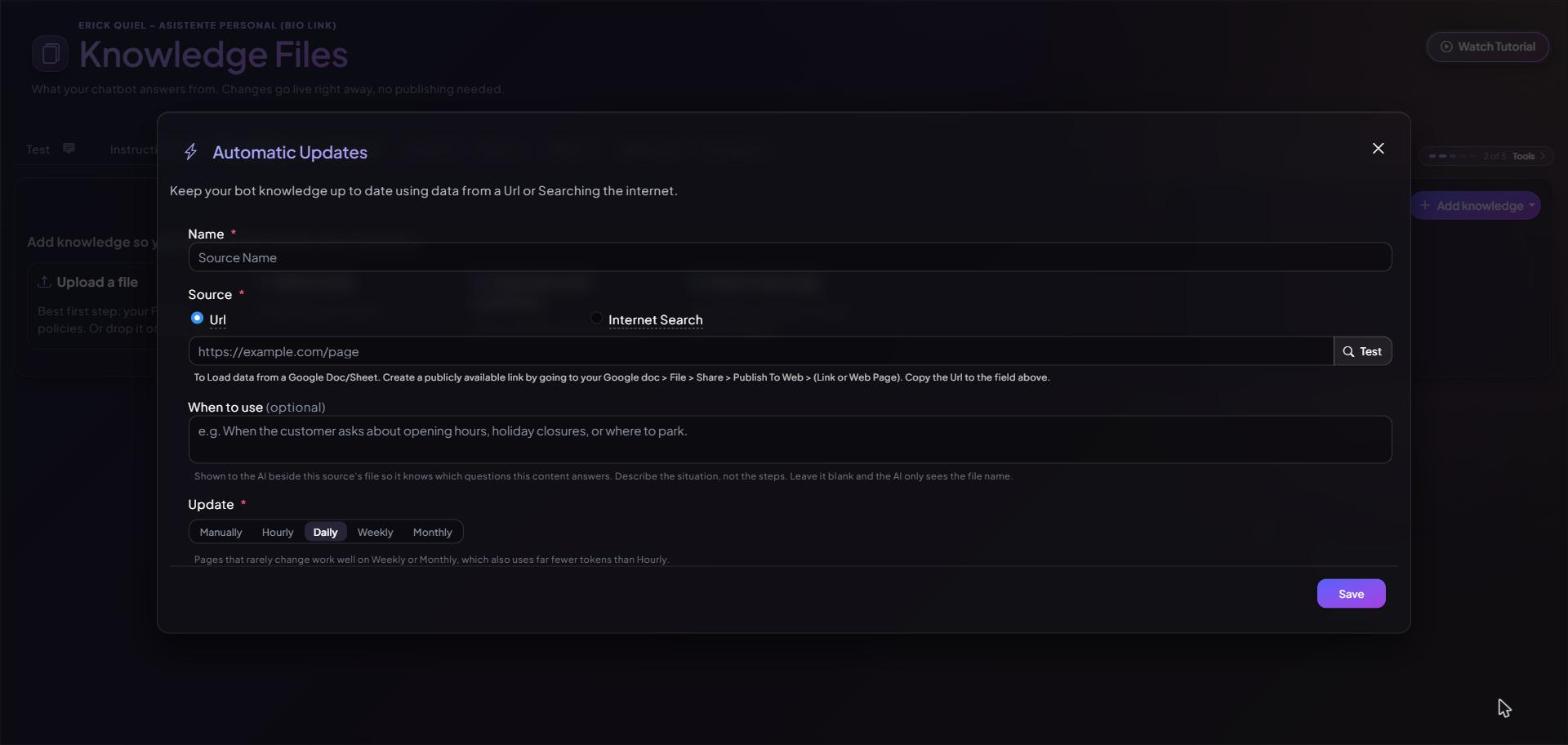
Adding a Source #
Open the Knowledge page, click Add knowledge and choose Auto-update from the web. Then fill in the Automatic Updates dialog:
- Name: a label for the source, up to 100 characters.
- Source: choose Url (the page must return HTML, text or CSV) or Internet Search. Enter the URL or your search, then click Test to check it works before saving.
- When to use (optional): describe when this content helps, for example “When the customer asks about opening hours, holiday closures, or where to park”. Describe the situation, not the steps. Leave it blank and the AI only sees the file name.
- Update: how often to re-read the source: Manually, Hourly, Daily (the default), Weekly or Monthly.
- Click Save.
Google Docs and Sheets #
If your source is a Google Doc or Sheet, publish it first (File, then Share, then Publish to web), then paste the published URL. A normal share link will not work.
Choosing an Update Frequency #
- Hourly: only for data that changes all the time, such as stock levels or live pricing.
- Daily: a good default for most sources.
- Weekly or Monthly: for pages that rarely change. They also use far fewer tokens than Hourly.
- Manually: for reference material you update yourself.
Where Your Sources Appear #
Each source and the knowledge file it creates appear as one row in your knowledge list, next to your other files. The row shows the file and its “When your chatbot uses it” hint, which you can edit in place. Deleting the row removes both the source and its file. Knowledge changes go live right away, with no publishing needed.
Tips #
- Always click Test before saving. It is the difference between a working source and one that quietly returns nothing.
- Write a clear “When to use” hint so your chatbot knows which questions this content answers.
- Need a one-time copy of a page instead? Use Read a web page or Learn about a website in the Add knowledge menu.


